



OneXPlayer 3 Instruction Manual
Unbox
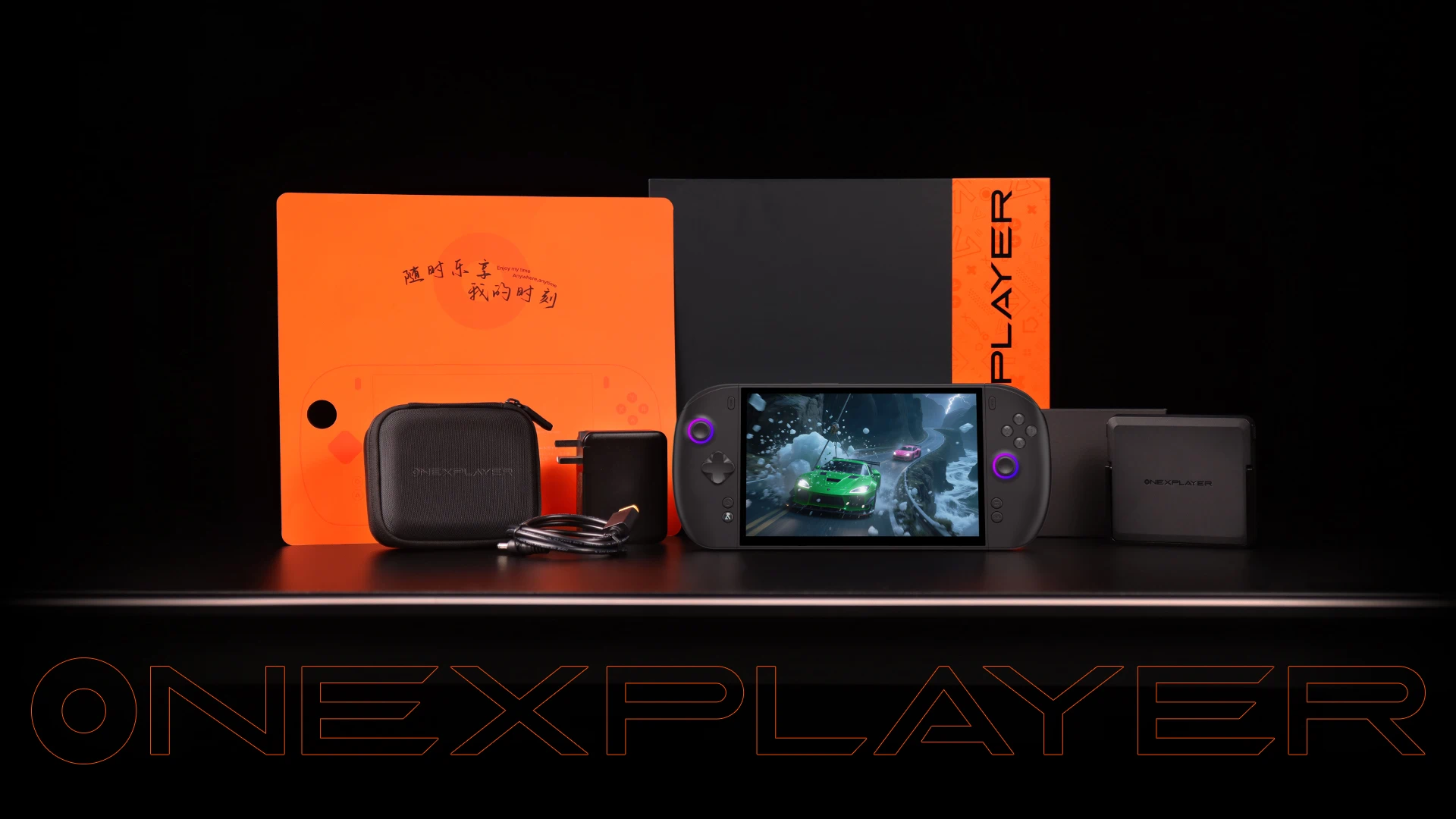
After opening the gift box, check the following accessories one by one to ensure there are no missing or damaged items: device, adapter (the adapter plug is for reference only, please refer to the actual received item), data cable, and user manual. If any items are missing, please contact customer service promptly.
Machine appearance inspecti on
1.Appearance of the host: Check the body for any bumps, scratches, paint peeling, uniform gaps, and no looseness;
2.Interface detection: Check that all interfaces are free from deformation, foreign object blockage, and oxidation of metal contacts;
3.Button detection: Lightly press all physical buttons on the host (power button, function button, etc.) to confirm that the button rebounds normally and there is no lag;
4.Screen inspection: Check that the screen protector film is not warped or scratched, and that the screen is not damaged
Appearance Introduction
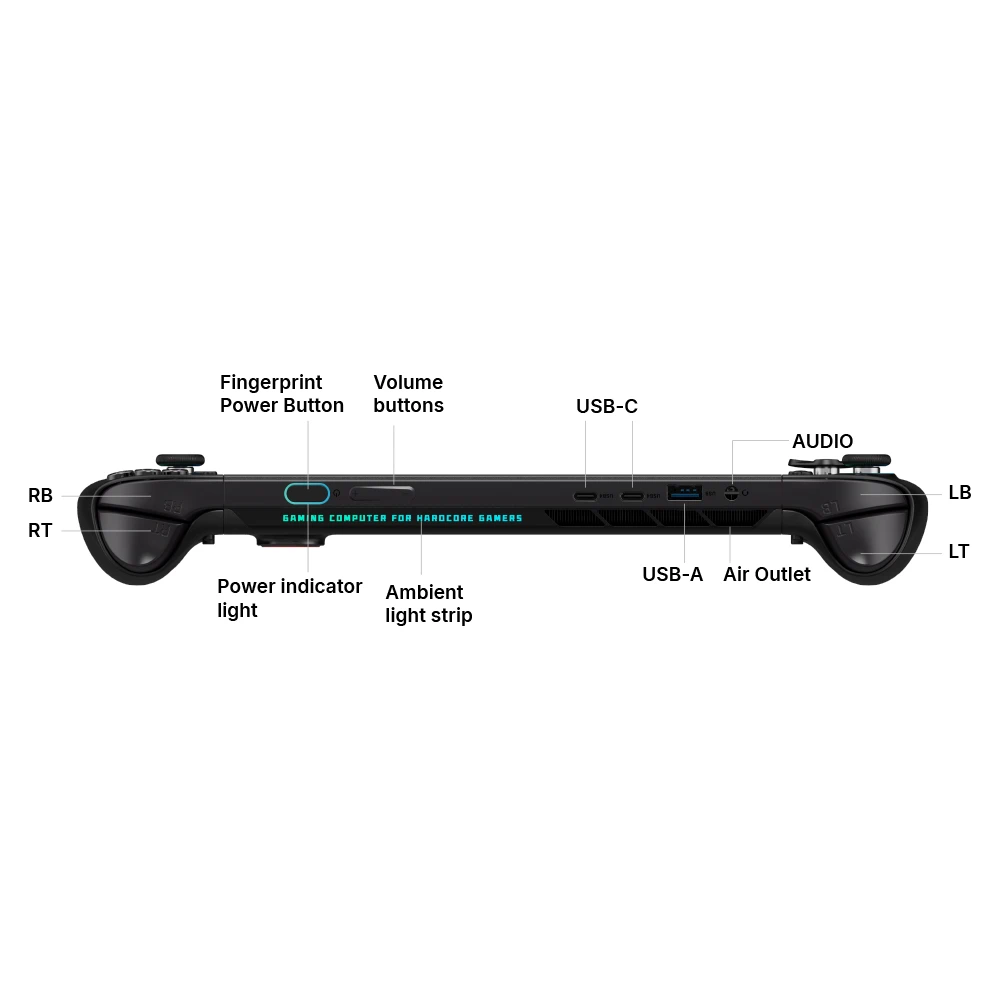
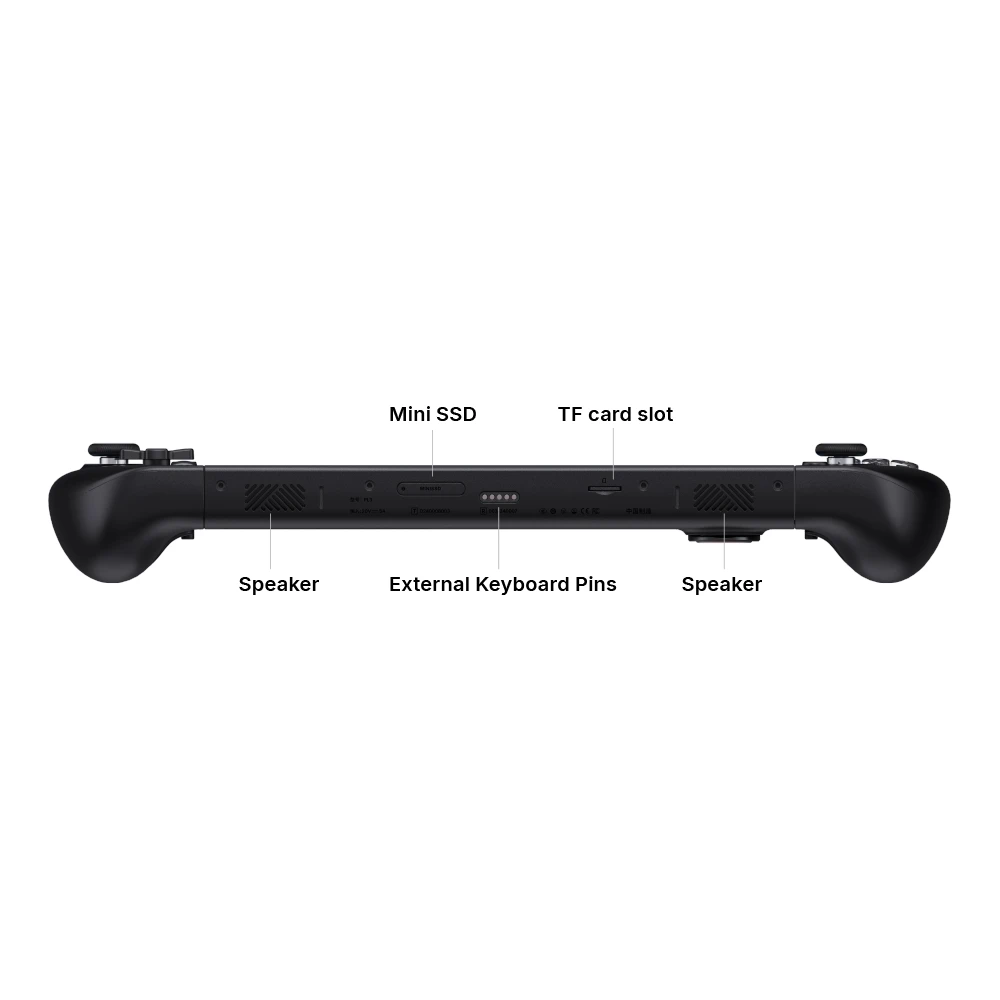
Machine button function
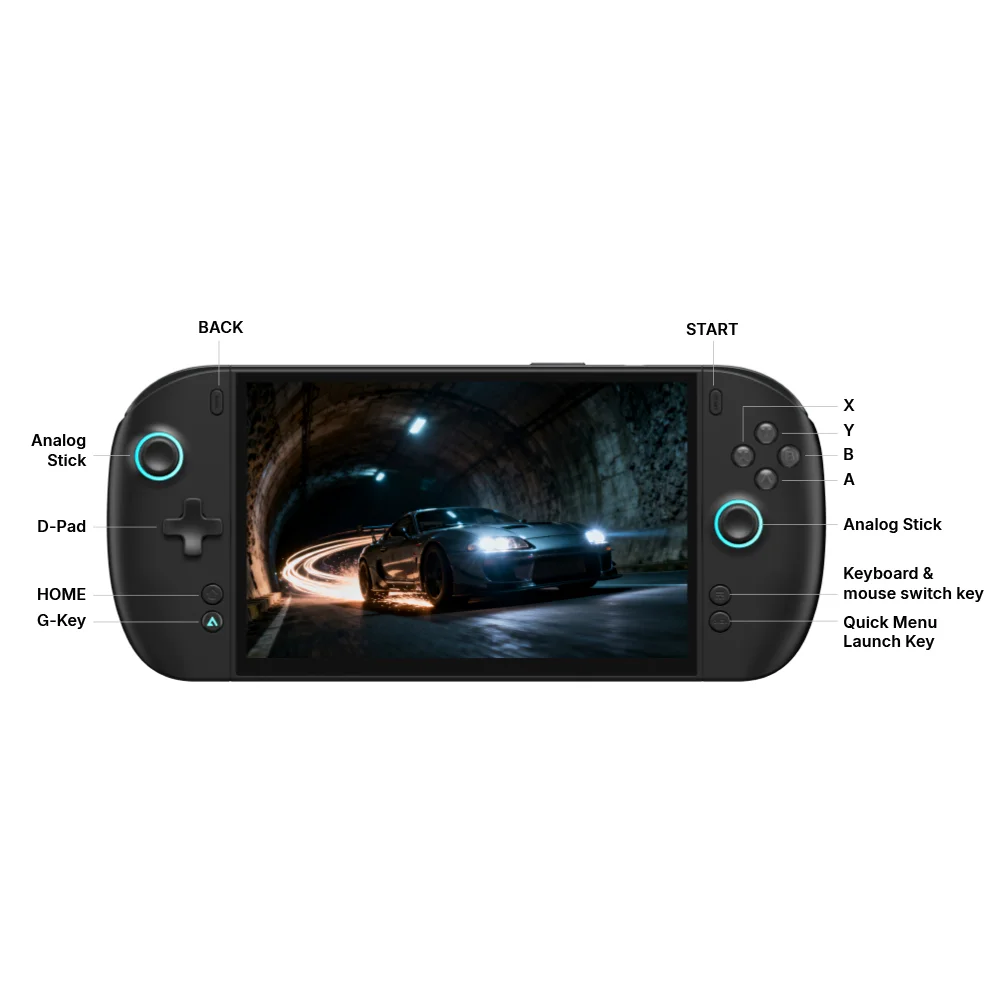
| Key Name | Operation | Function Description |
|---|---|---|
| Power button | Long press Short press |
Power on/off Sleep/wake up |
| Volume+ | Short press | Increases device audio output |
| Volume- | Short press | Decreases device audio output |
| Volume+ + Volume- | Press simultaneously | Screenshot |
| Home button | Short press | Returns to desktop |
| G-Key (Xbox) button | Short press | Call/hide XBOX |
| Keyboard and mouse switch key | Long press Short press |
Switch between keyboard and mouse mode/joystick mode Call up the keyboard |
| OneX key | Long press Short press |
Call out/hide game library Call/hide Onexconsole panel |
Disassembly and installation of handle
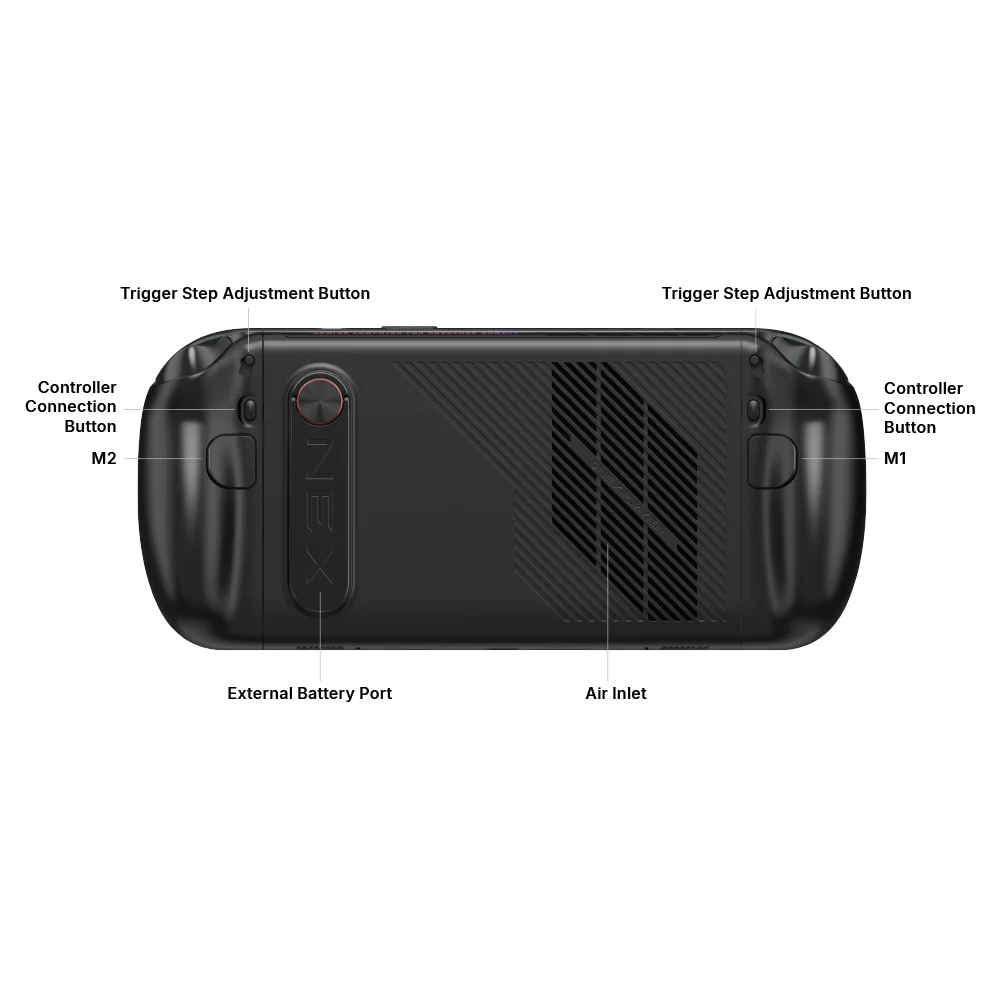
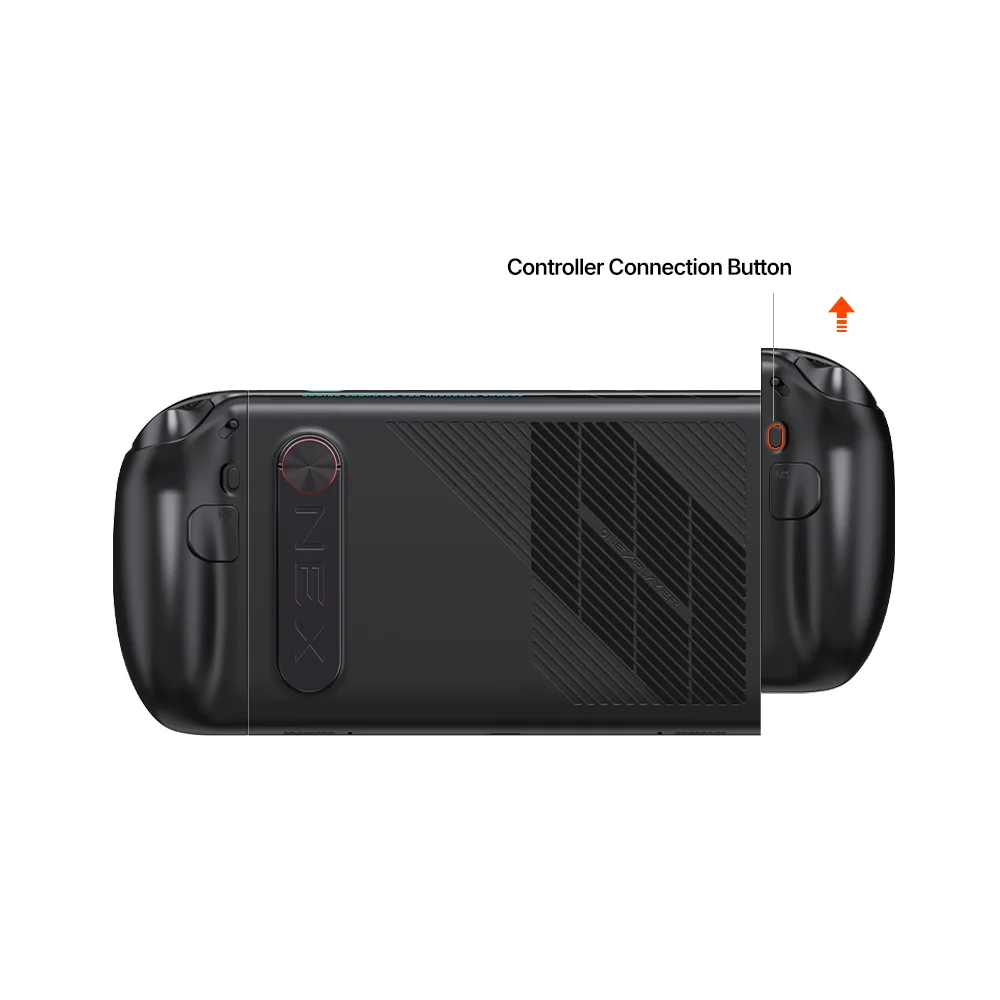
Press the back handle connection button, then push the handle straight up vertically to detach it from the host slide rail and remove the handle.
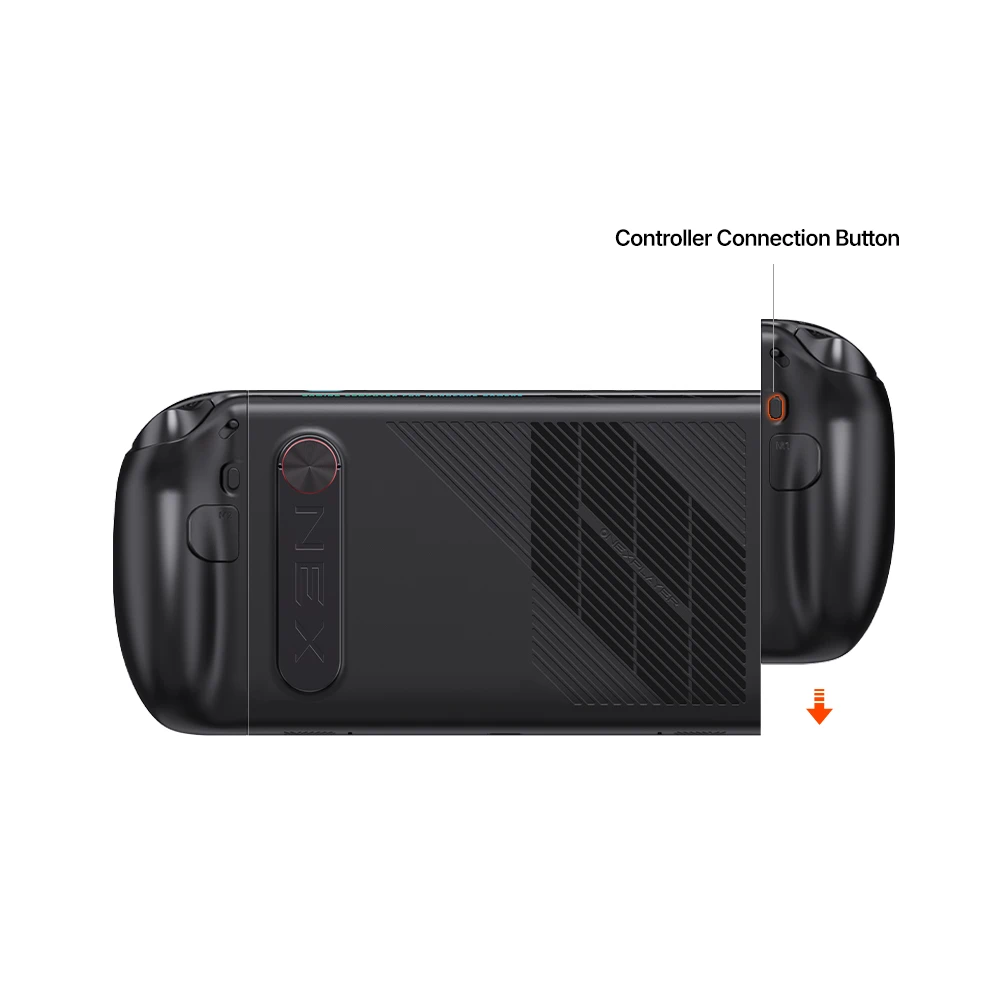
Press the back handle connection button, insert the handle into the slot, slide it down from the top until you hear a "click," indicating the lock is engaged. The handle is now successfully installed
Controller connector introduction
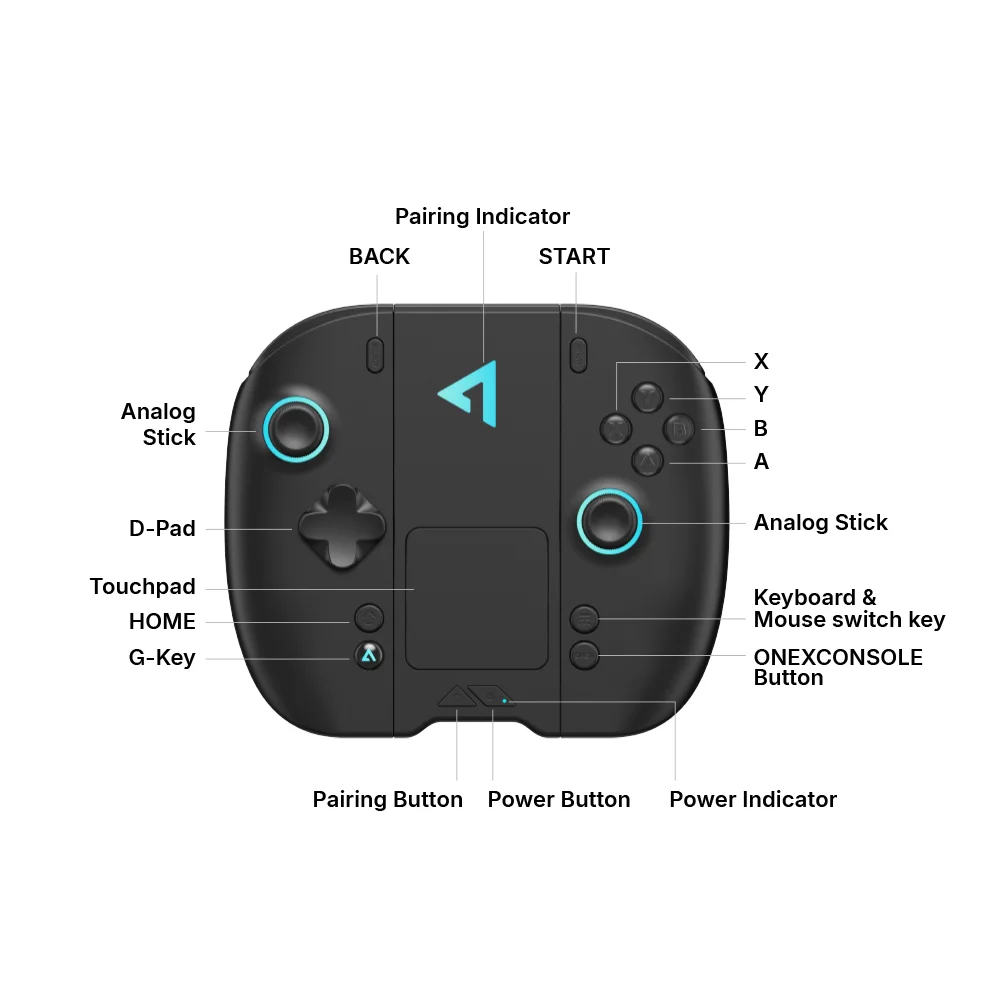
Power button: Short press to turn on/sleep on/wake up, long press to turn off
Pairing button: Short press the pairing button to enter pairing mode, long press to clear pairing
power indicator light:
Power on: indicator light on continuously. Low battery: indicator light flashes rapidly
Charging: slow flashing indicator light Sleep: The indicator light is flashing for breathing
Pairing indicator light:
Pairing in progress: Blue light flashing
Pairing completed: Automatically switch to handle RGB and keep it on for a long time
D-PAD replacement
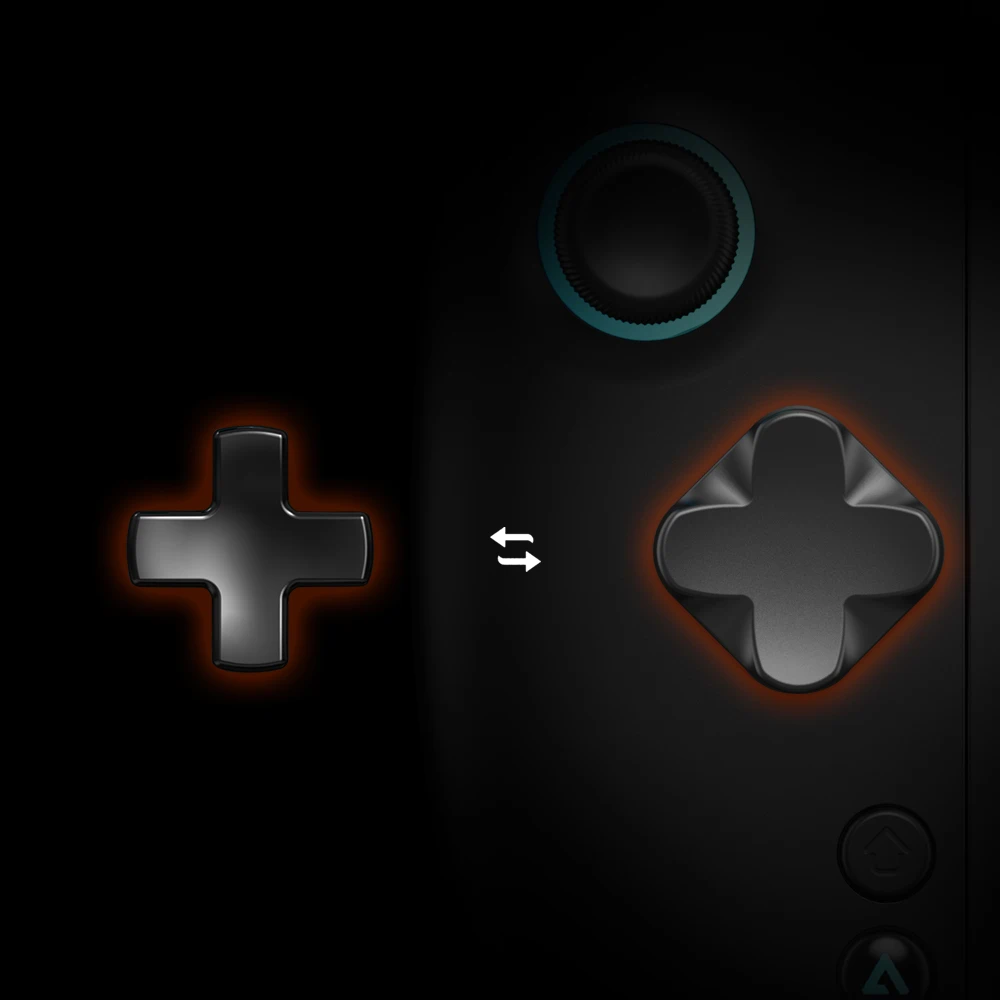
D-PAD button on the controller can be disassembled and replaced, and there are two types of D-PAD button to choose from, meeting different gaming needs
When replacing, shake the D-PAD button left and right and pull it up, then align the new D-PAD button with the groove and press it to insert it
Note: The factory standard D-pad is an eight-direction cross key, extra replacement D-pad button is for option to purchase.
Connection steps
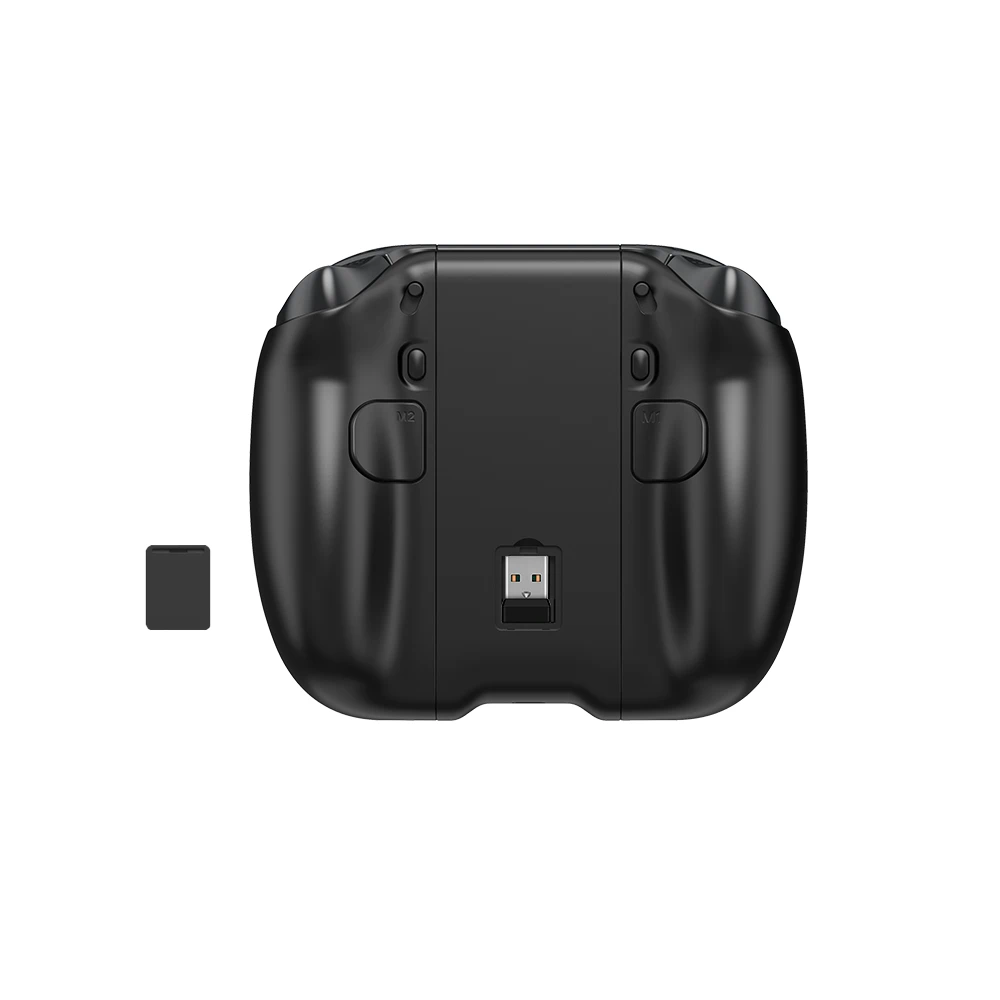
1.Before use, connect the handle to the base and remove the dust cover of the storage compartment on the back of the base, then take out the internal receiver.
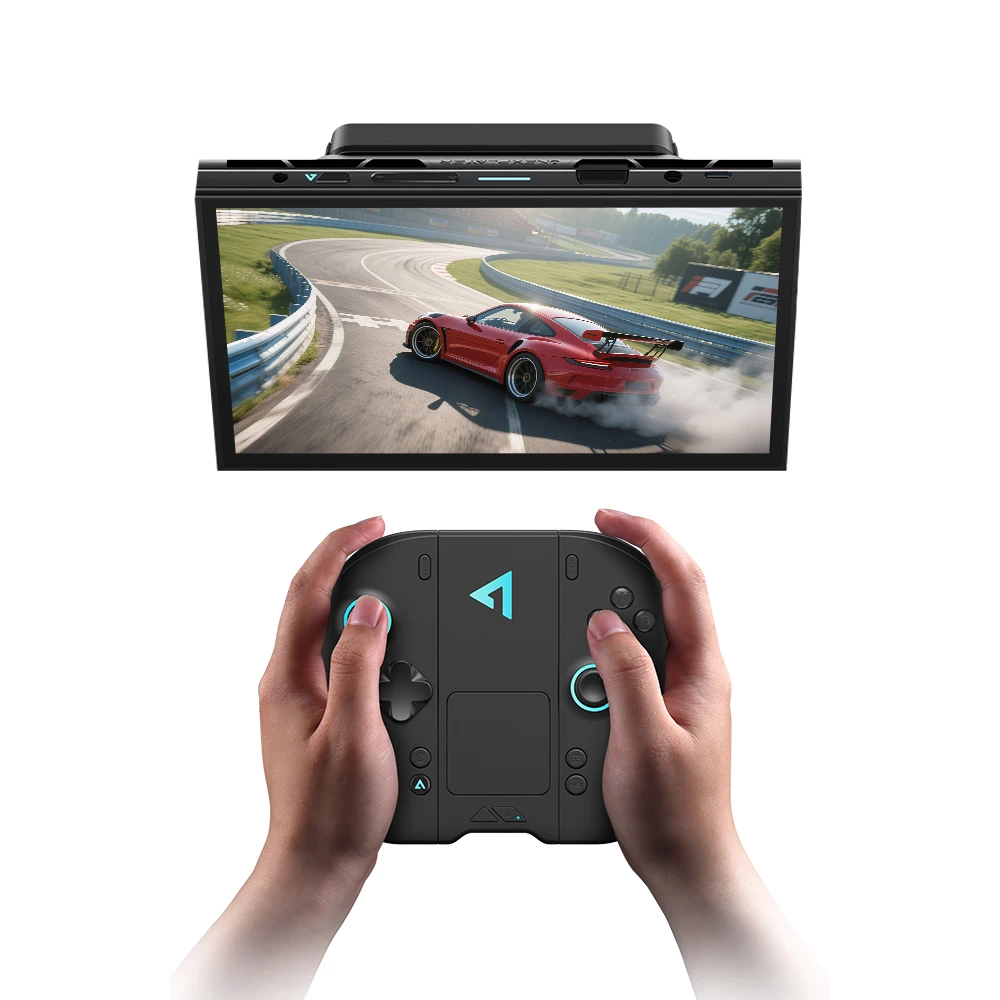
2.Connect the receiver to the machine to start using the handle normally
Magnetic keyboard installation
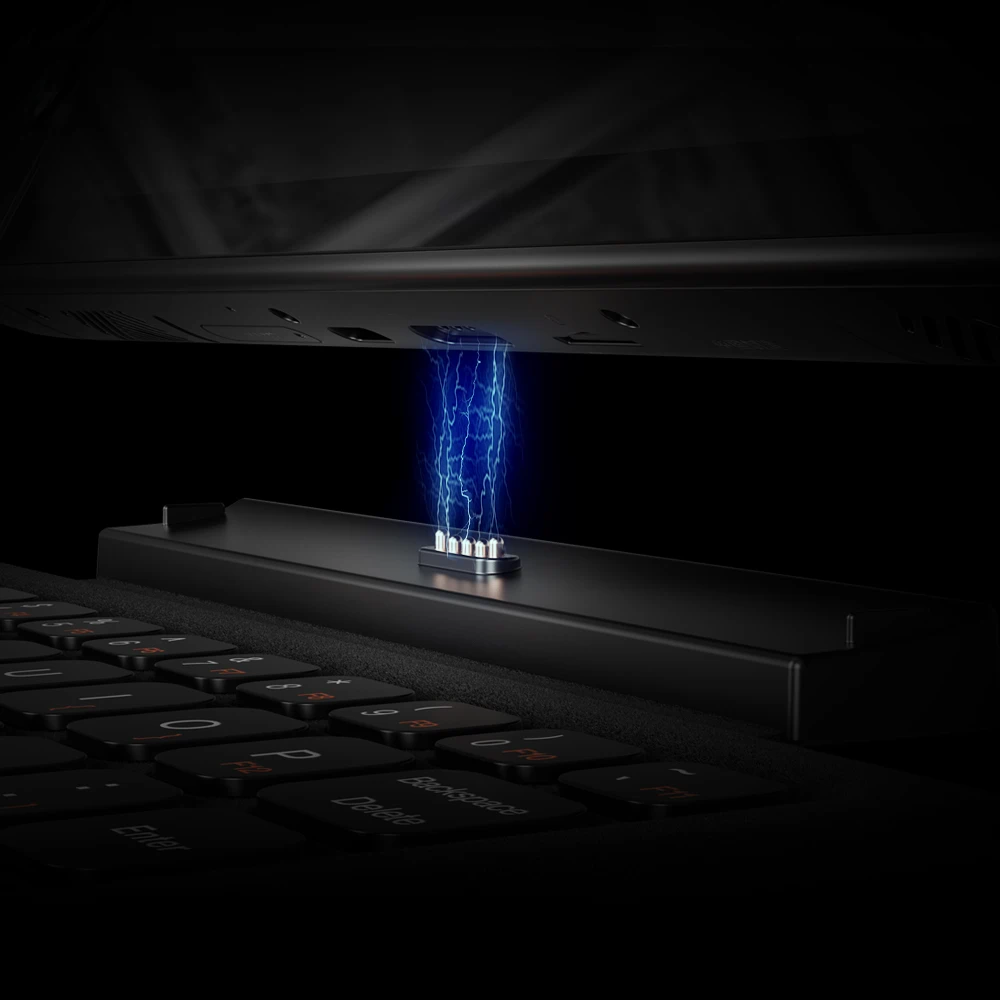
There is a Pogo Pin interface under the machine. Simply align it with the port, and the magnet will automatically align and attract it. With a "click" sound, it will be in place.
Magnetic keyboard combination key function
| Key | +FN |
|---|---|
| Esc | Short press to switch backlight brightness, long press to turn off backlight/short press to turn on backlight |
| 1 | F1 |
| 2 | F2 |
| 3 | F3 |
| 4 | F4 |
| 5 | F5 |
| 6 | F6 |
| 7 | F7 |
| 8 | F8 |
| 9 | F9 |
| 10 | F10 |
| 11 | F11 |
| P | F12 |
| Q | Turn on/off touchpad |
| R | —— |
| T | ‑ |
| Y | + |
| U | = |
| I | { |
| O | } |
| L | [ |
| ; | ] |
| C | Copilot AI |
| , | ’ |
First boot settings
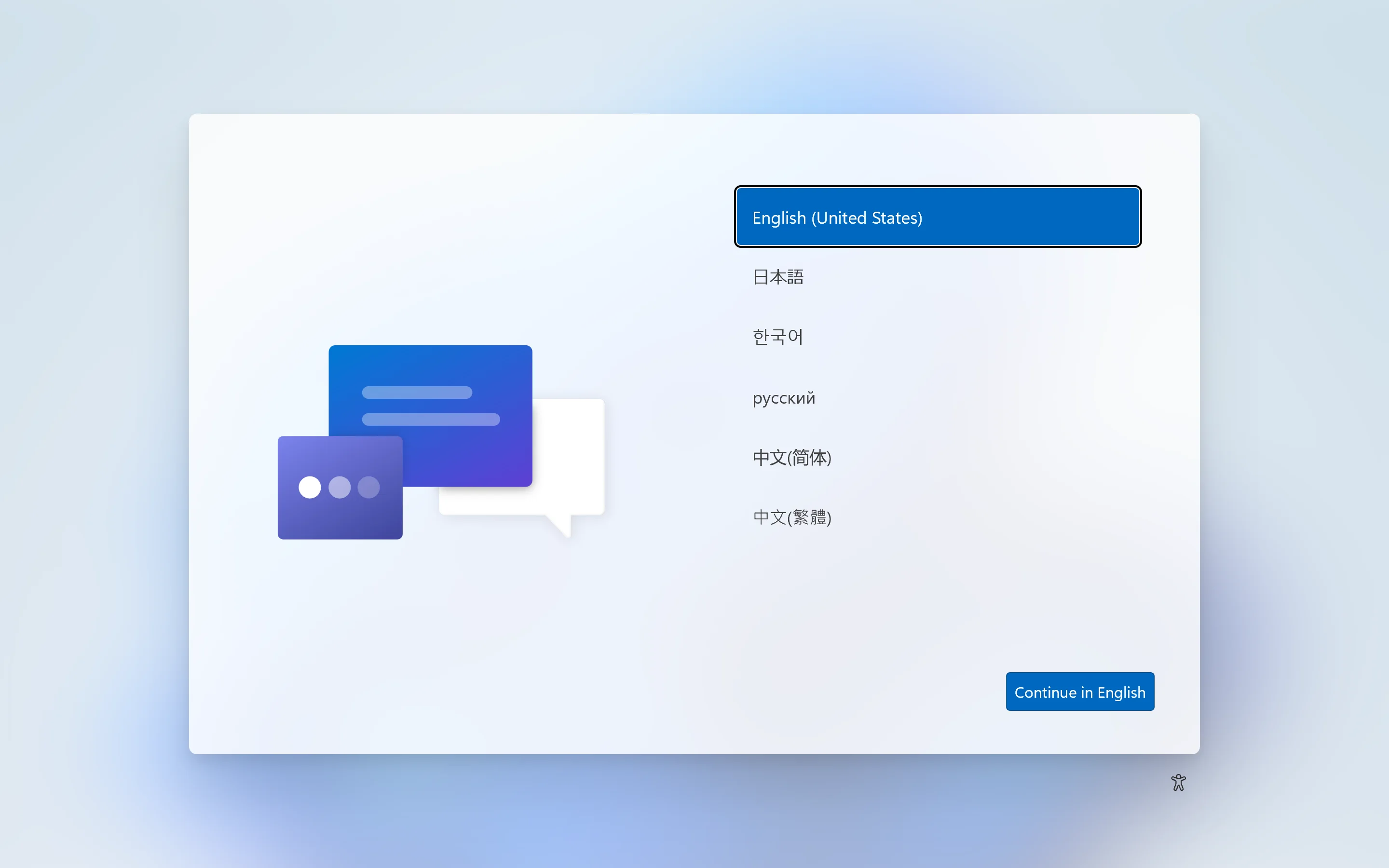
1.Select "Language" and choose according to your personal needs, taking "Simplified Chinese" as an example, and click "Yes" in the bottom right corner.
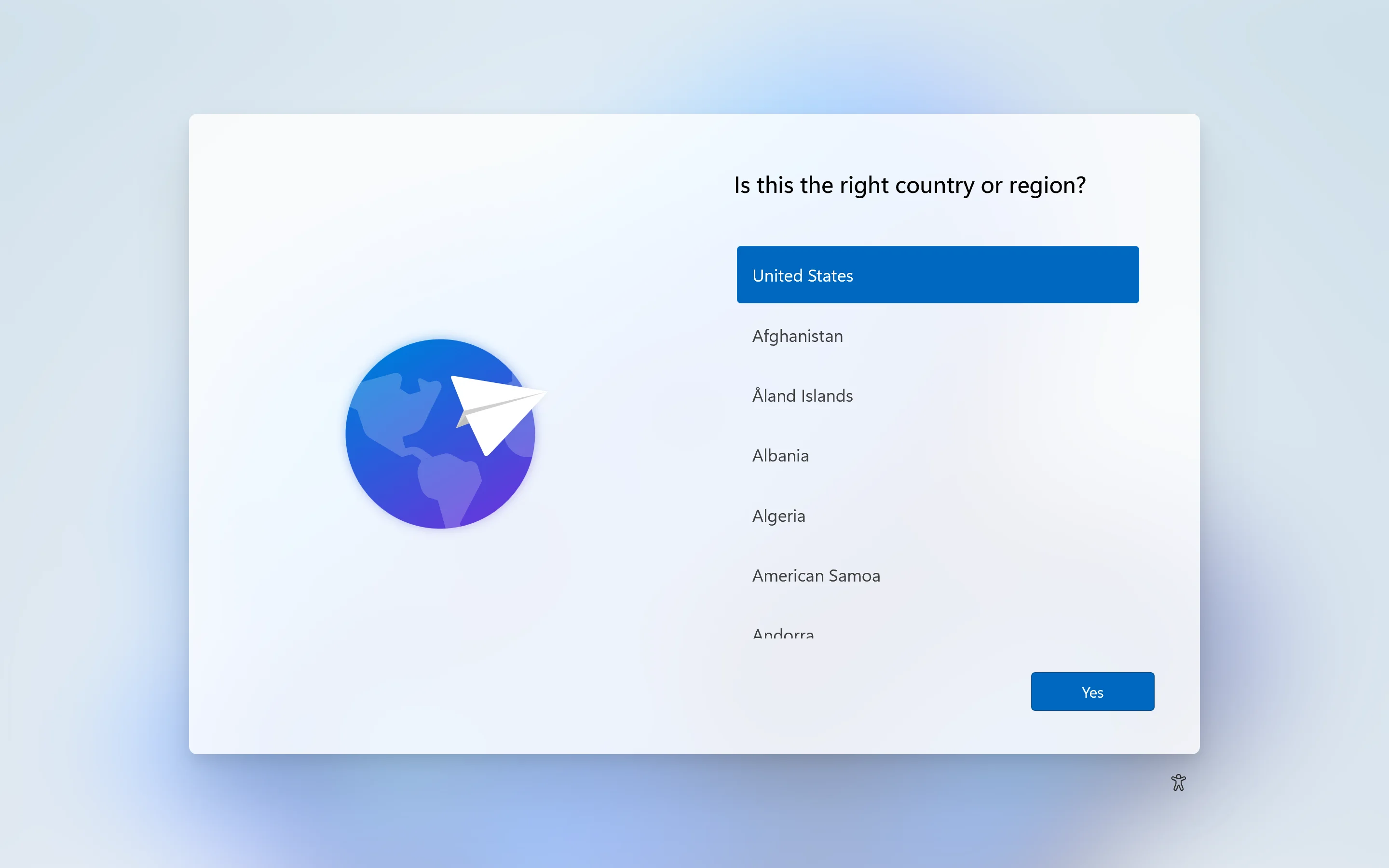
2.Go to the "Region" settings, select your geographical area, and click "Yes" in the bottom right corner.
3.Enter the keyboard layout interface, select the appropriate keyboard layout for you, and click "Yes" in the bottom right corner.
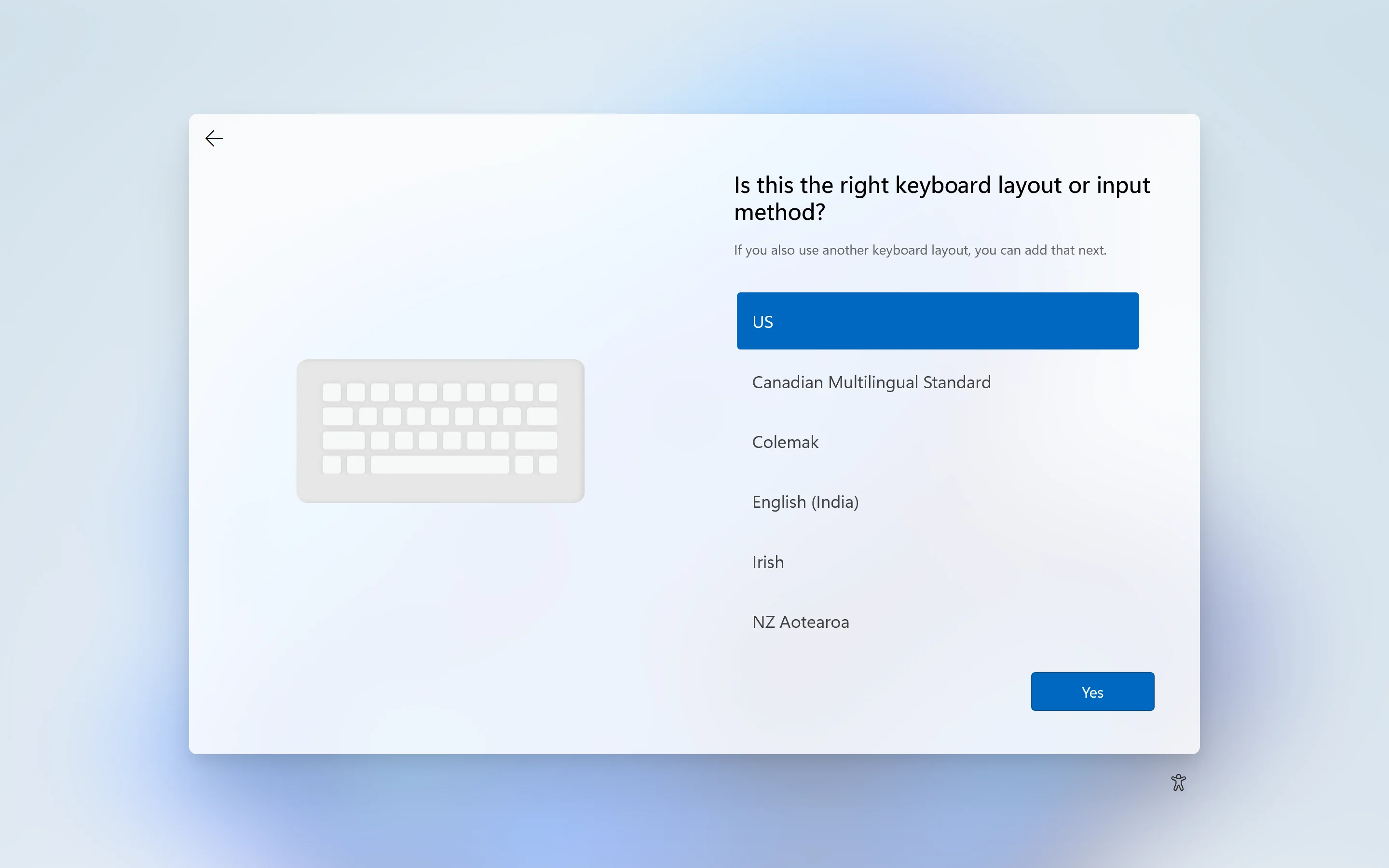
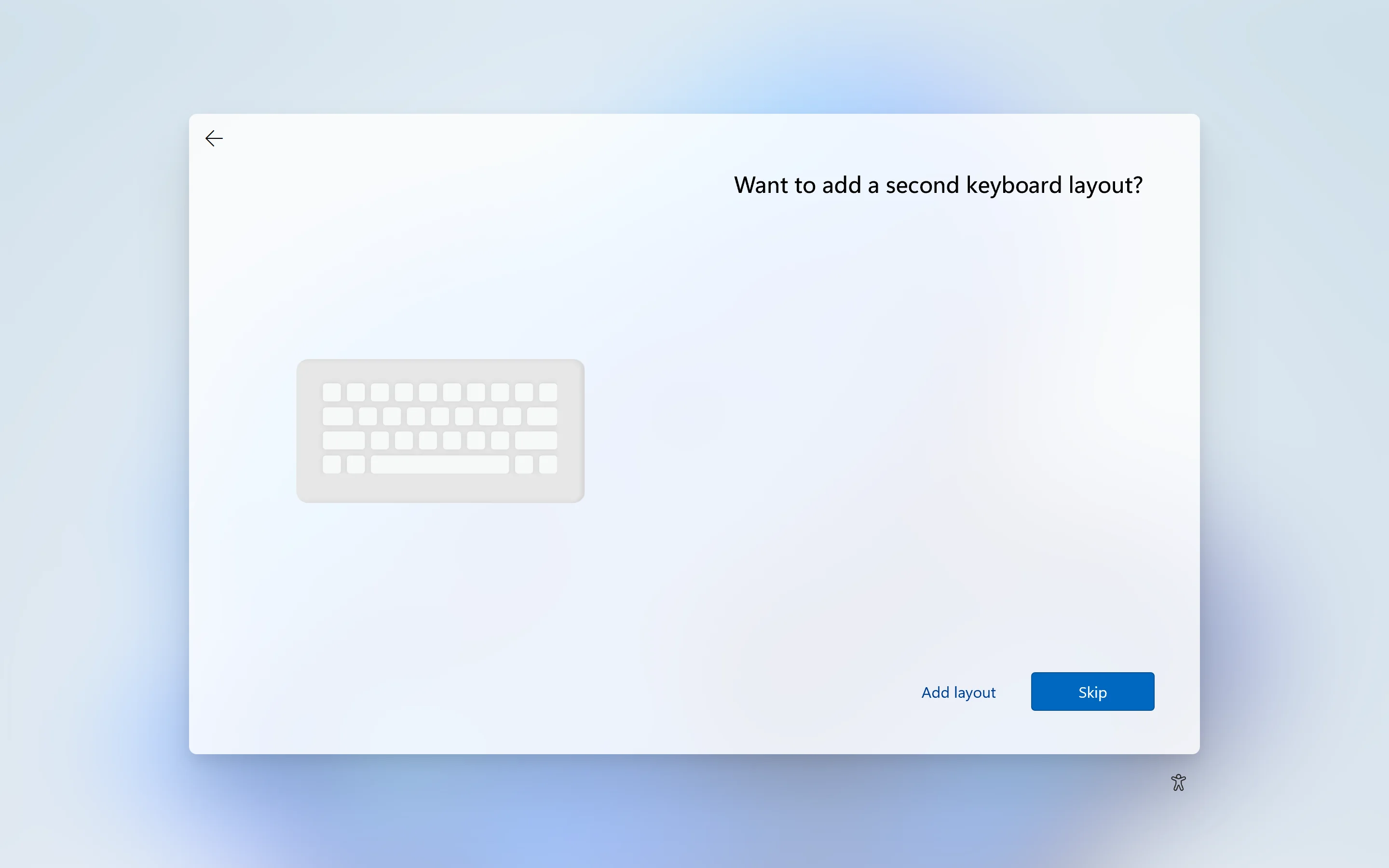
4.Enter the second keyboard layout setting, which can be added or skipped according to your needs.
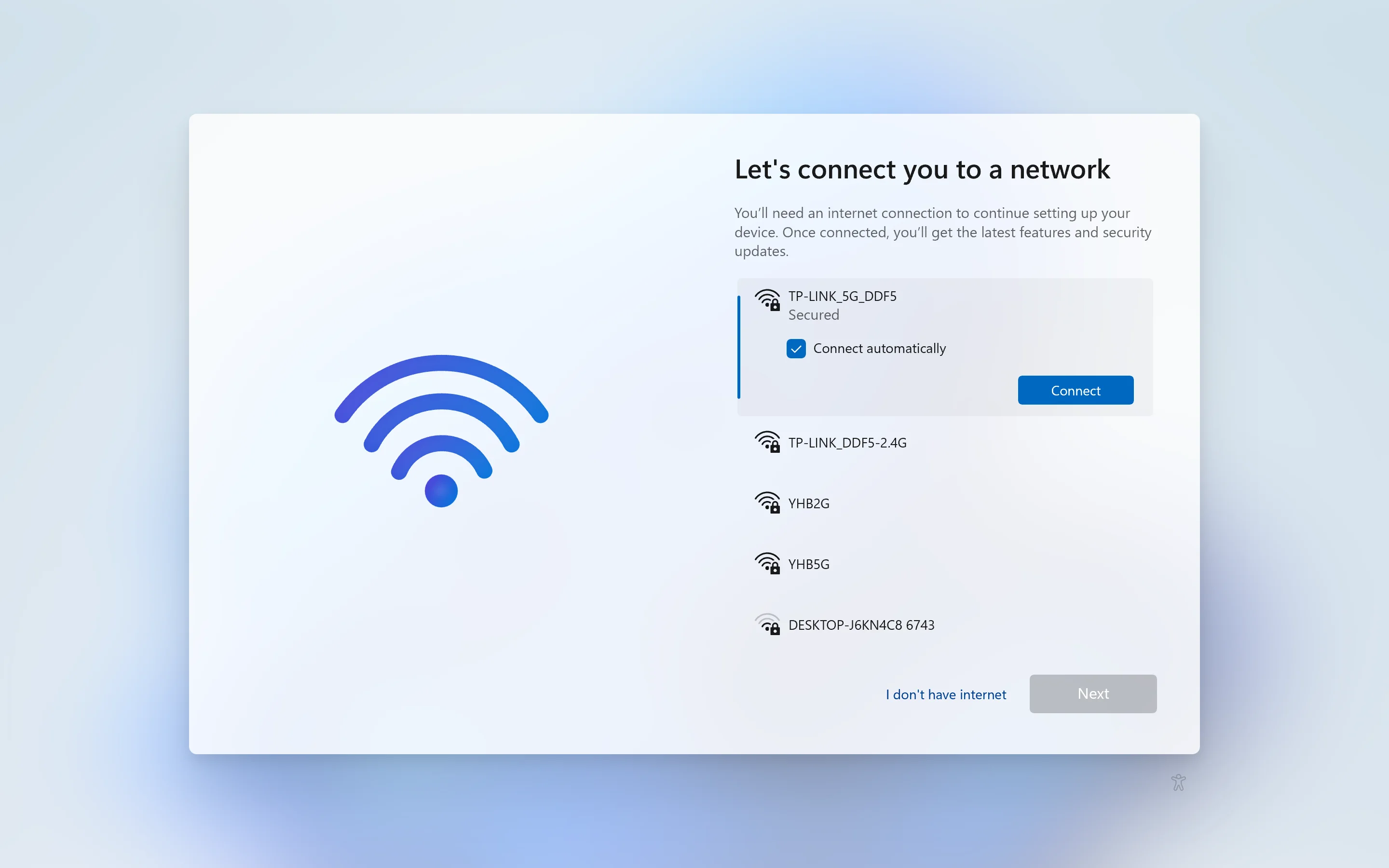
5.When entering the "Network Settings" interface (the system will update the driver on its own after networking, resulting in a longer time required to enter the system), it is recommended to select "I don't have an Internet connection" in the bottom left corner
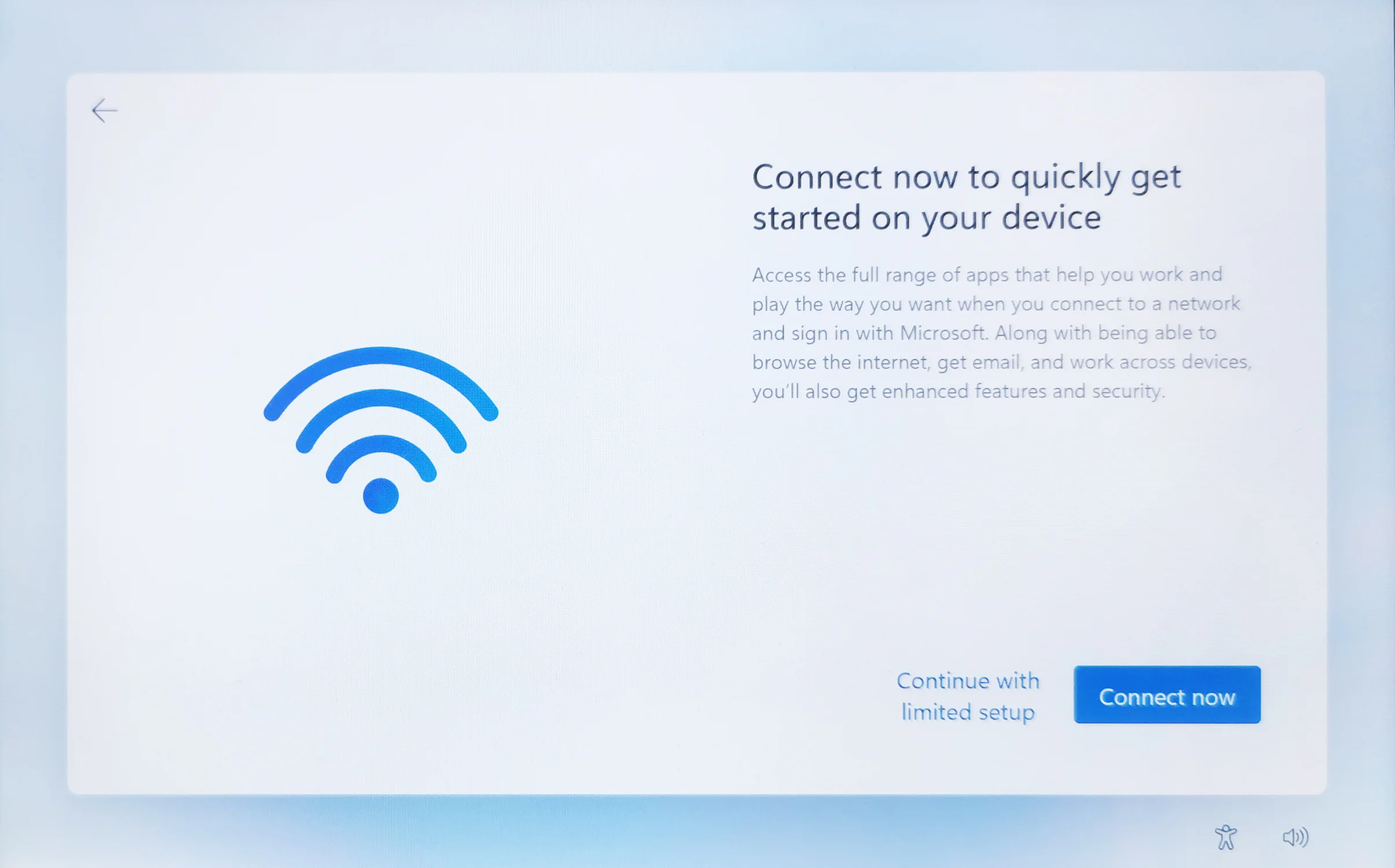
6.Select 'Continue with limited set up' in the bottom left corner
7.Please enter the account name you want to define and click "Next" in the bottom right corner.
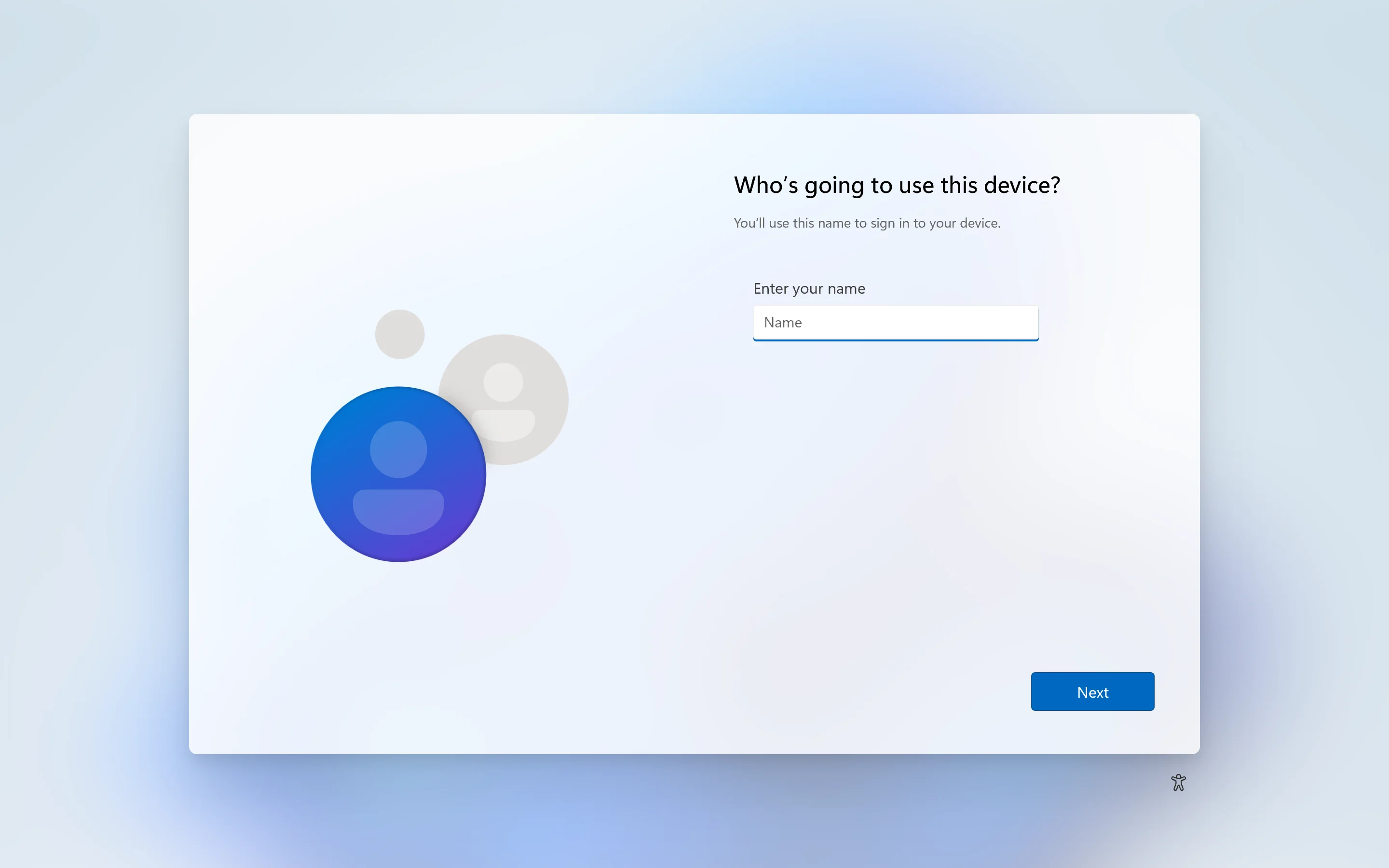
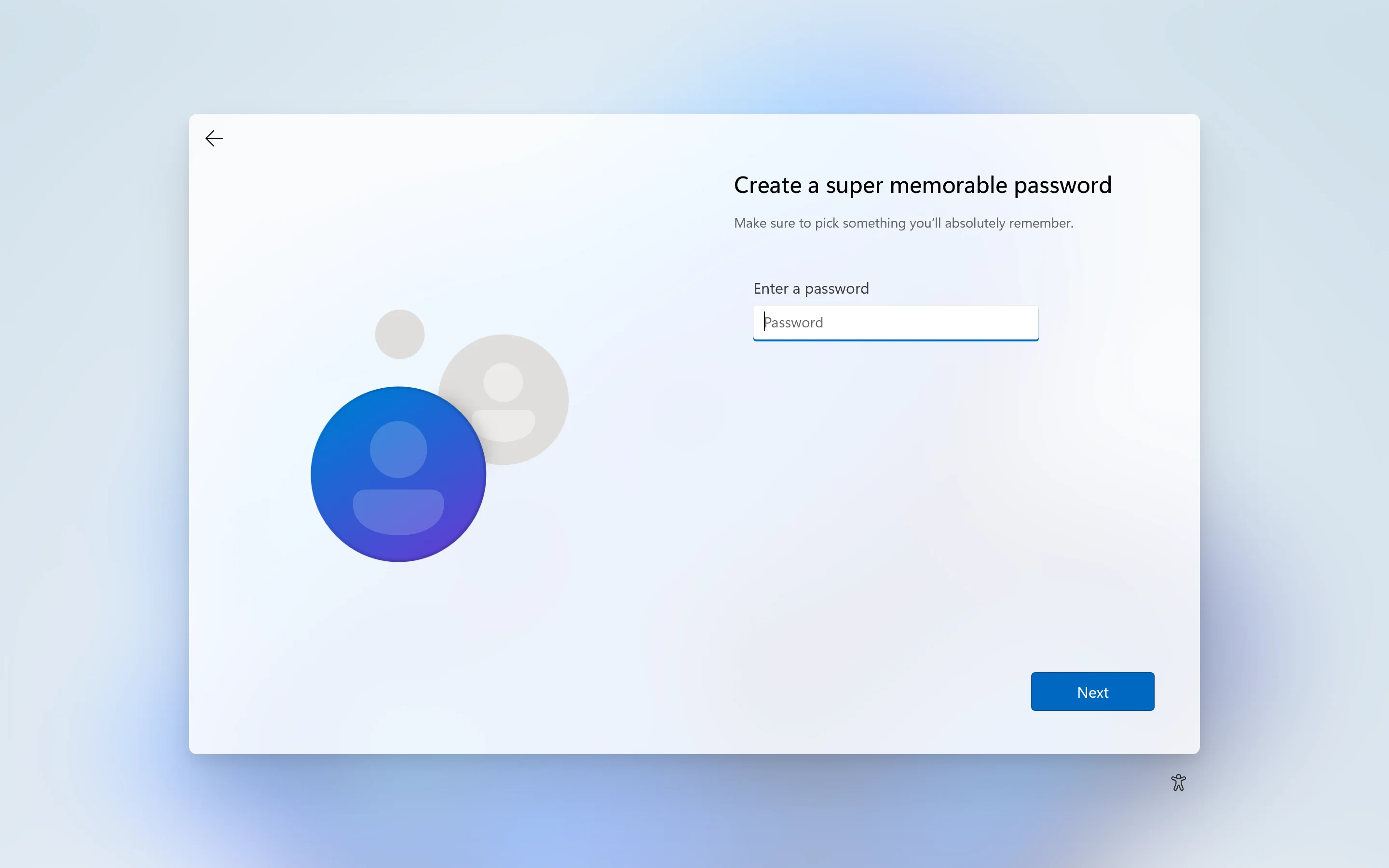
8.Create account passwords (system startup password and management password) according to your needs. For convenience, you can directly select "Next Page" and set them yourself after entering the desktop
9.After a few minutes, you can enter the Windows operating interface and complete the system settings.
Introduction to Wi-Fi Networking
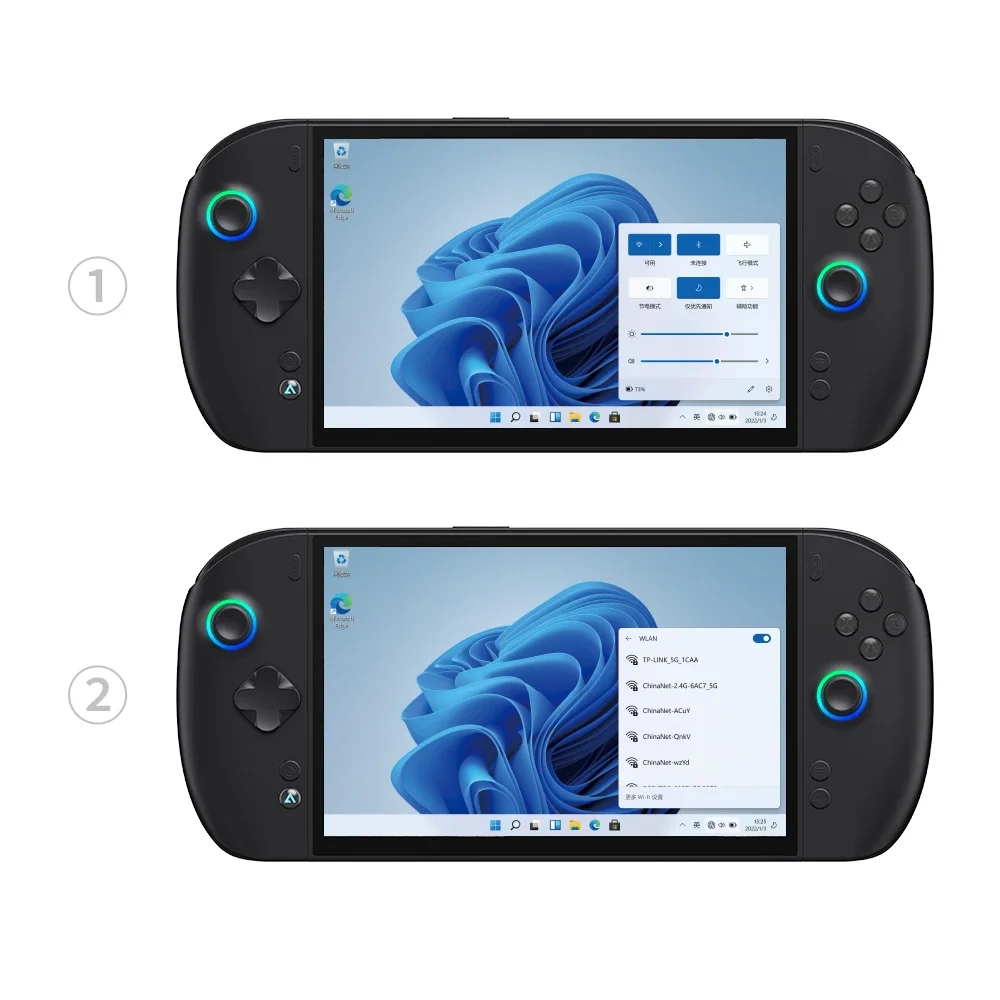
1. Click on the network icon in the notification bar at the bottom right corner
2. Open the WiFi list and select the appropriate WiFi signal connection
External storage expansion
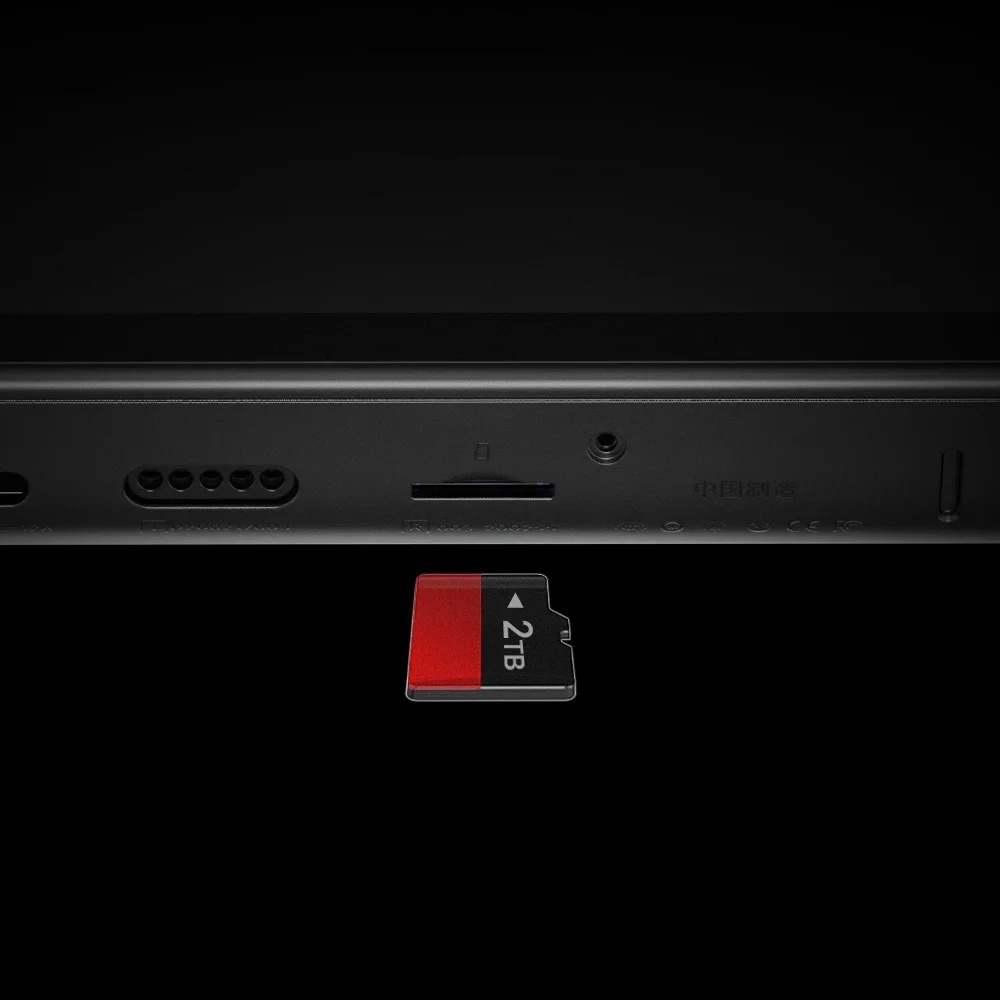
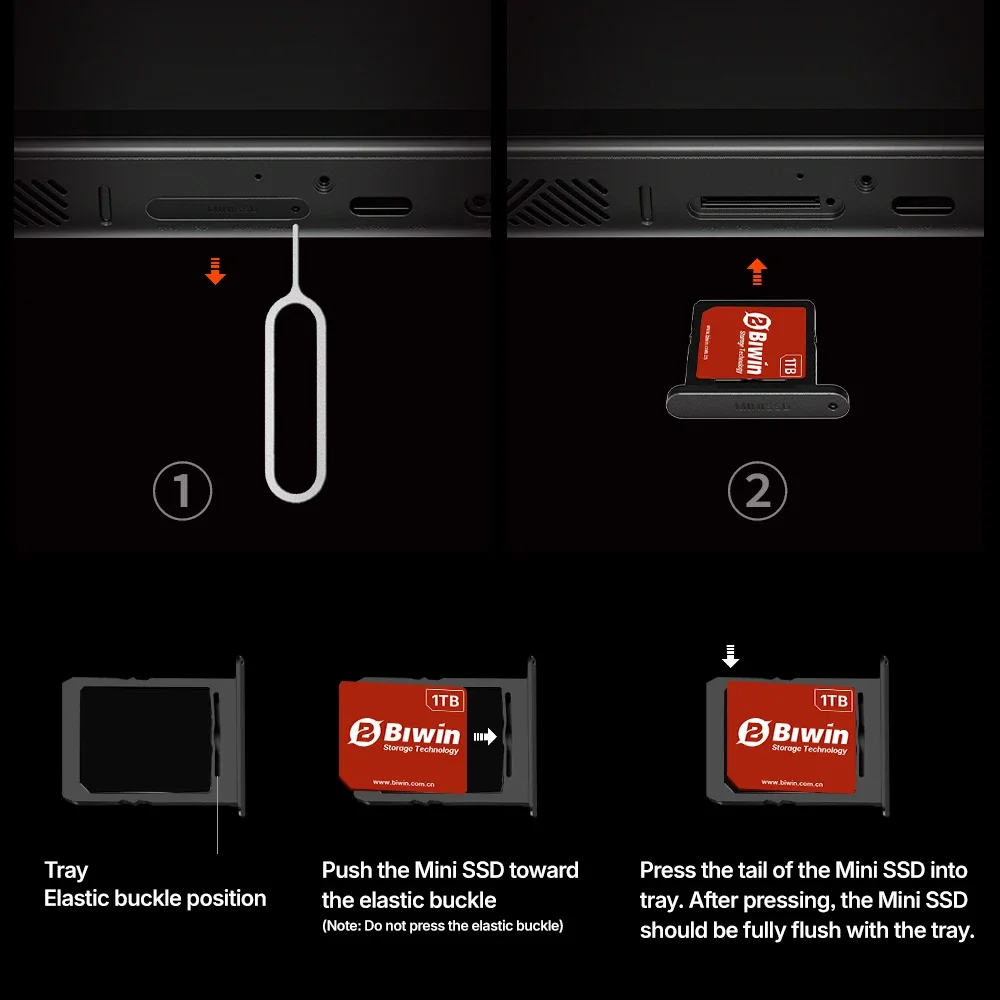
The machine supports both TF card and Mini SSD expansion, bidding farewell to storage troubles
Align the interface with the card slot and gently press to insert/remove it
Use the card retrieval tool to target the small hole in the card slot, and press it to eject the card slot
Handle calibration
operating steps:
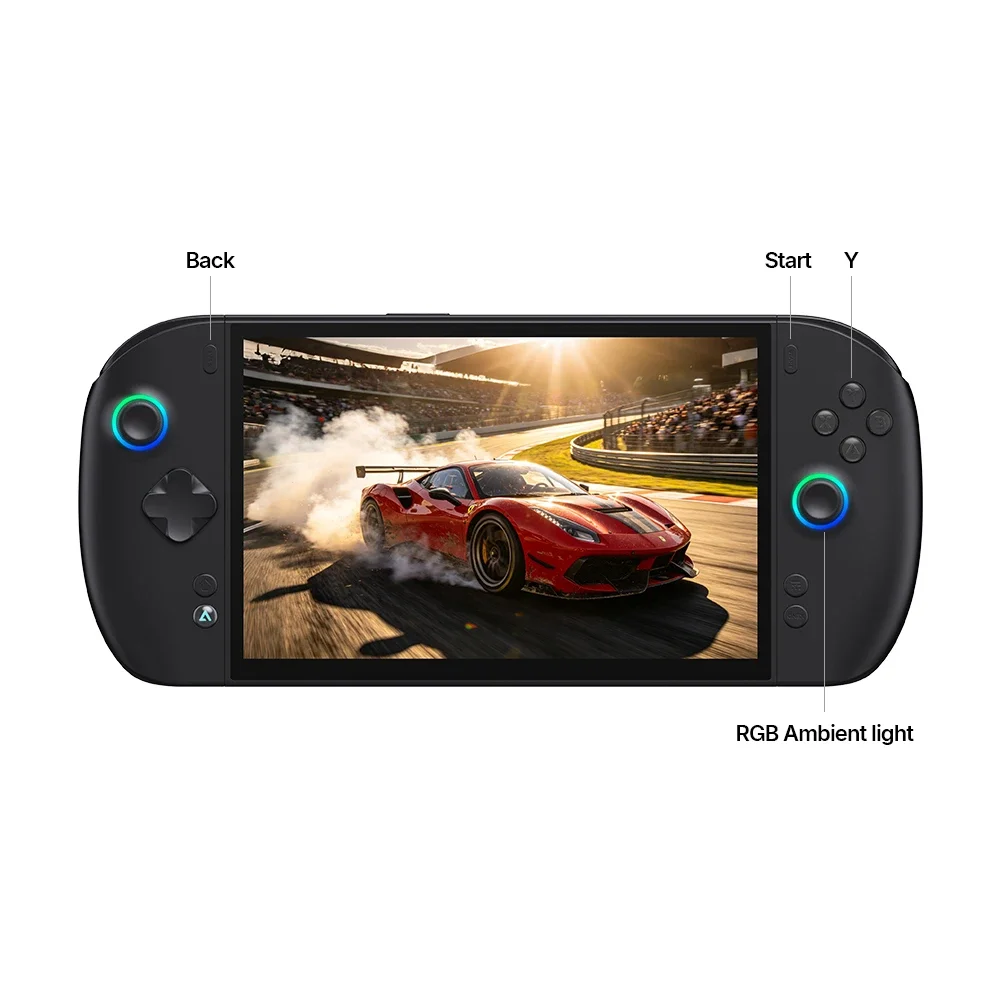
Step 1: In the default state of the controller (Xbox360 controller mode), press and hold the 【 Back 】 key and 【 Start 】 key for about 5 seconds at the same time. Release the key when the RGB light goes out;
Step 2: First, gently rotate the left and right joysticks 3 times at the maximum tilt angle to calibrate the joystick, and then press the left and right trigger keys to the bottom 3 times to calibrate the motor;
Step 3: Press the 【 Y 】 key to exit calibration mode, and the mouse key switch light will turn off.
Note:
1. When rotating the joystick, try to reduce the force as much as possible, and always maintain the maximum tilt angle during rotation;
2.When calibrating the trigger button, please make sure to press it all the way down;
3. The calibration steps for the joystick and trigger key are indispensable.
External expansion screen
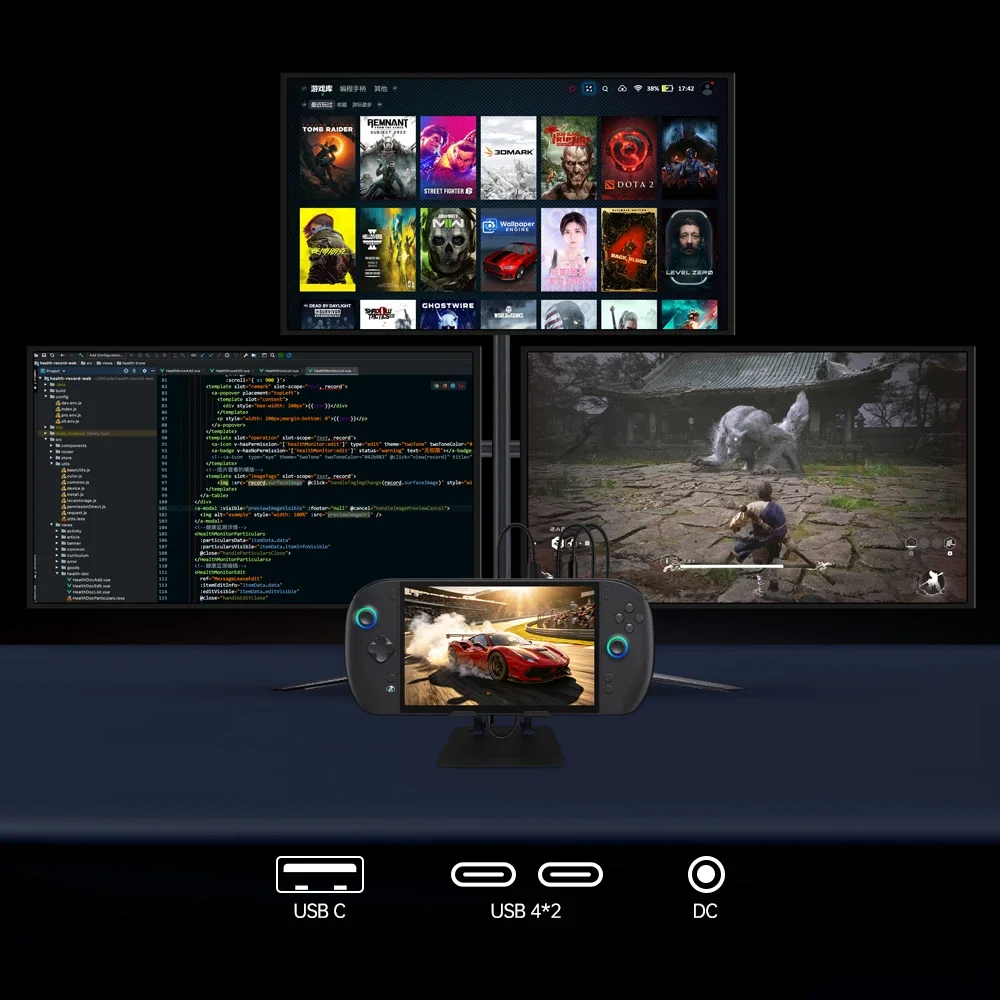
The machine is equipped with 2 USB 4 interfaces, both of which support video output.
When using USB 4 single screen output, it supports up to 4K 60Hz. It can be directly connected to the corresponding interface display through USB C to HDMI/DP/USB C, or connected to the corresponding display interface using docking station devices.
Connect the GPU dock to enhance performance
The machine is equipped with a USB 4.0 interface, allowing it to connect to external GPU expansion devices (provided the device has a USB 4.0 interface) to enhance performance
The USB 4.0 interface supports hot plugging. Simply connect the machine to the GPU dock using a USB 4.0 cable and power on the GPU dock device. If "Microsoft Basic Display Adapter" appears under Device Manager --> Display Adapters, the connection is successful (follow the driver installation instructions below)
AMD Official Website:https://www.amd.com/zh-cn/support/download/drivers.html
Intel Official Website:https://www.intel.cn/content/www/cn/zh/search.html#sortCriteria=@lastmodifieddt%20descending&cf-tabfilter=Downloads&cf-downloadsppth=%E6%98%BE%E5%8D%A1
NVIDIA Official Website:https://www.nvidia.cn/drivers/
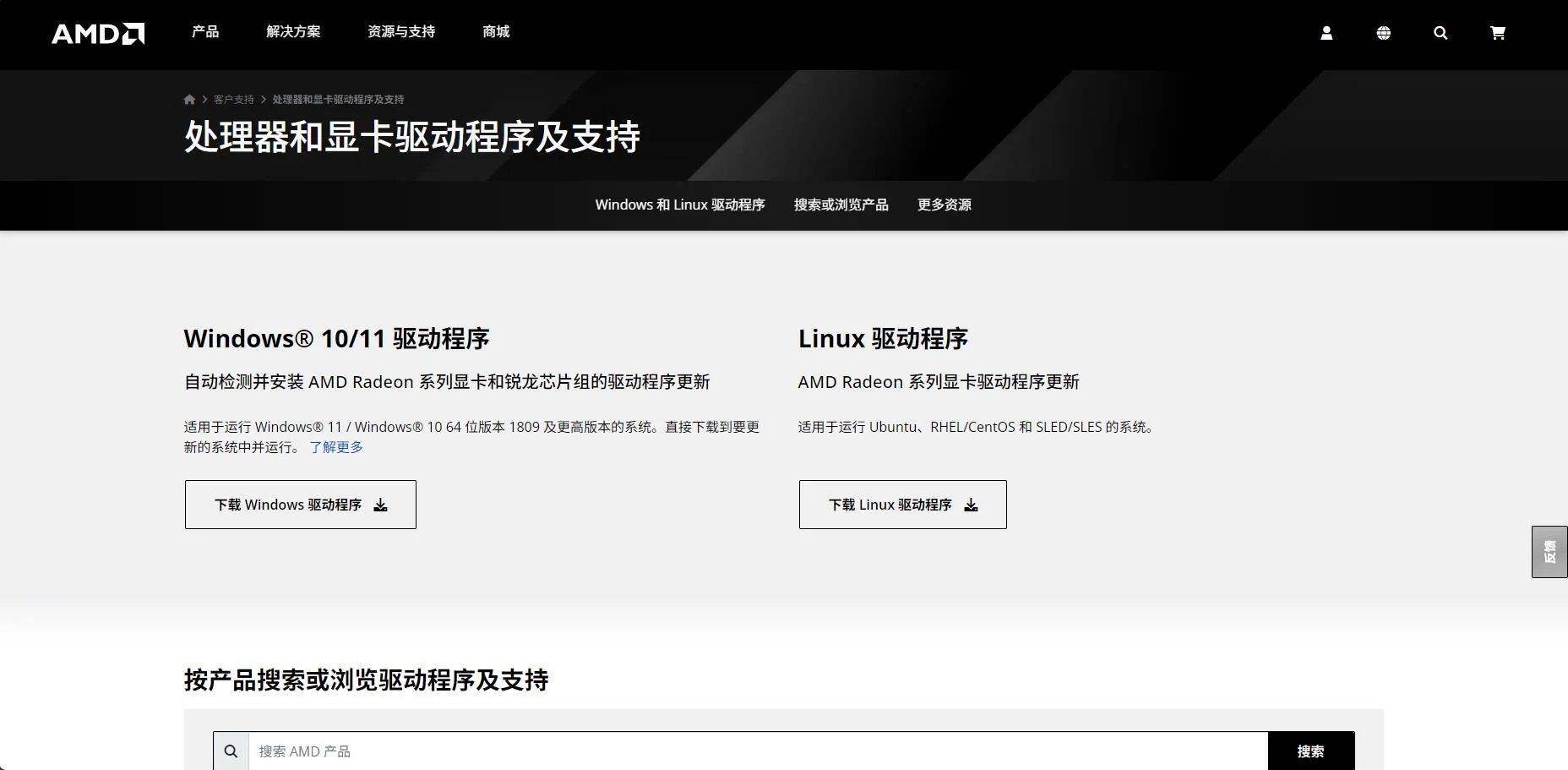
Taking OneXGPU 2 as an example, after successful connection, open the AMD official website link above and enter the corresponding graphics card model to search for drivers
Download completed and open the corresponding driver
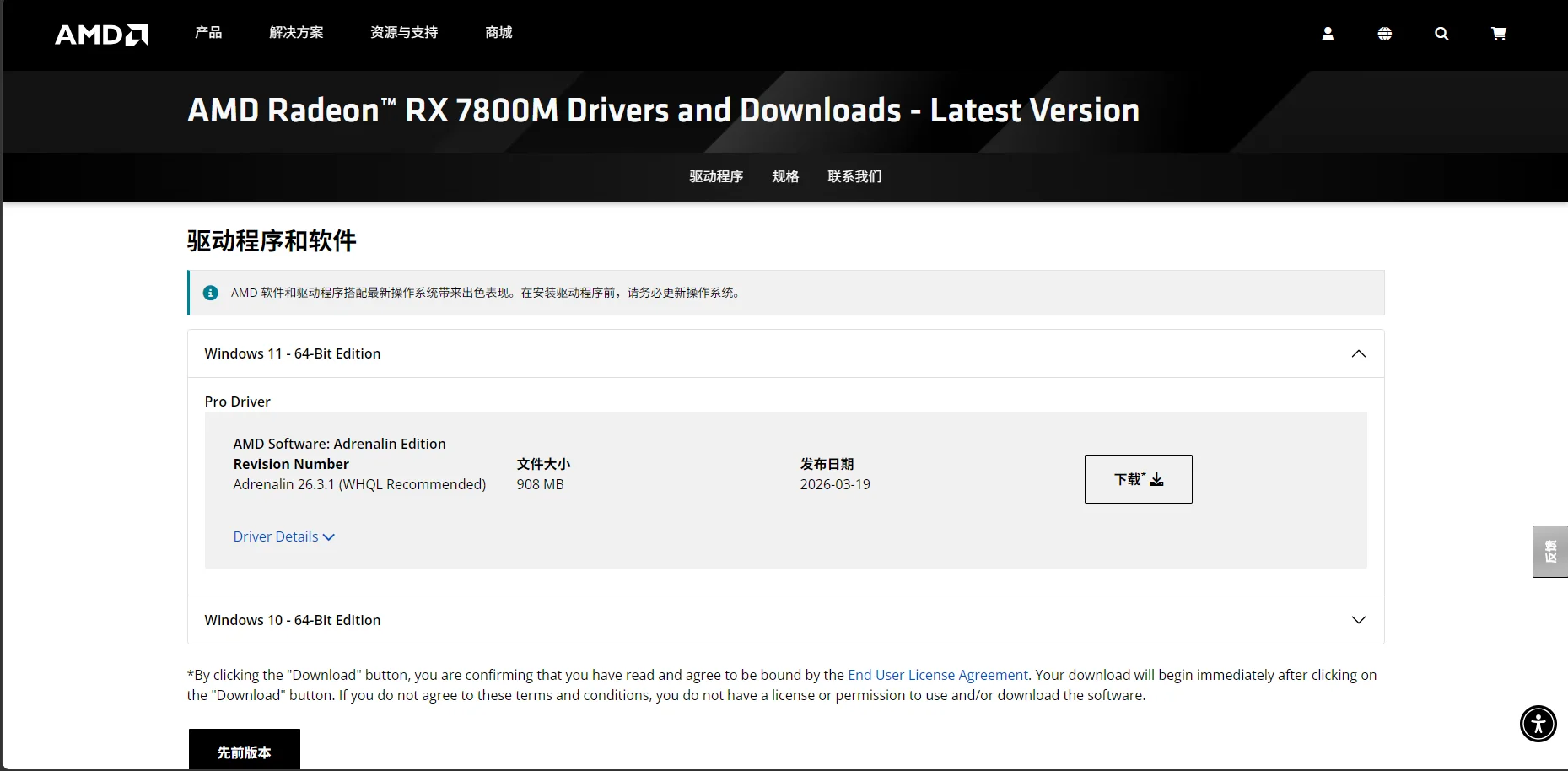
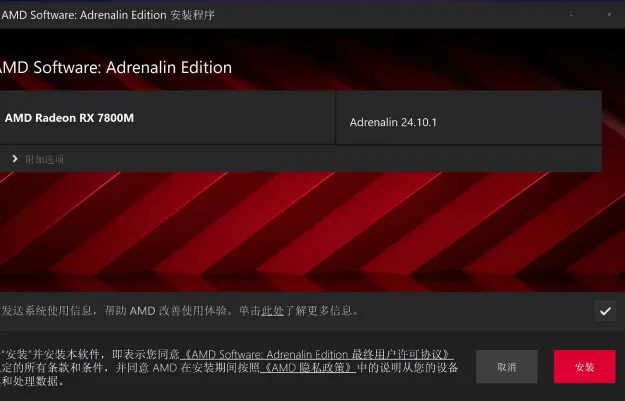
After opening the driver installation program, select Install.
After patiently waiting for the installation to complete, open Device Manager - Display Adapter. When the Microsoft Basic Display Adapter displays the corresponding graphics card driver name, it indicates that the driver installation is successful
Fingerprint enrollment
The power button of this machine is integrated with a Windows Hello fingerprint sensor, which supports quick fingerprint unlocking/login to the system, replacing passwords or PINs, and is safe and convenient.
1. Open Windows icon - Settings ((Gear icon))
2. Select account on the left - login option on the right
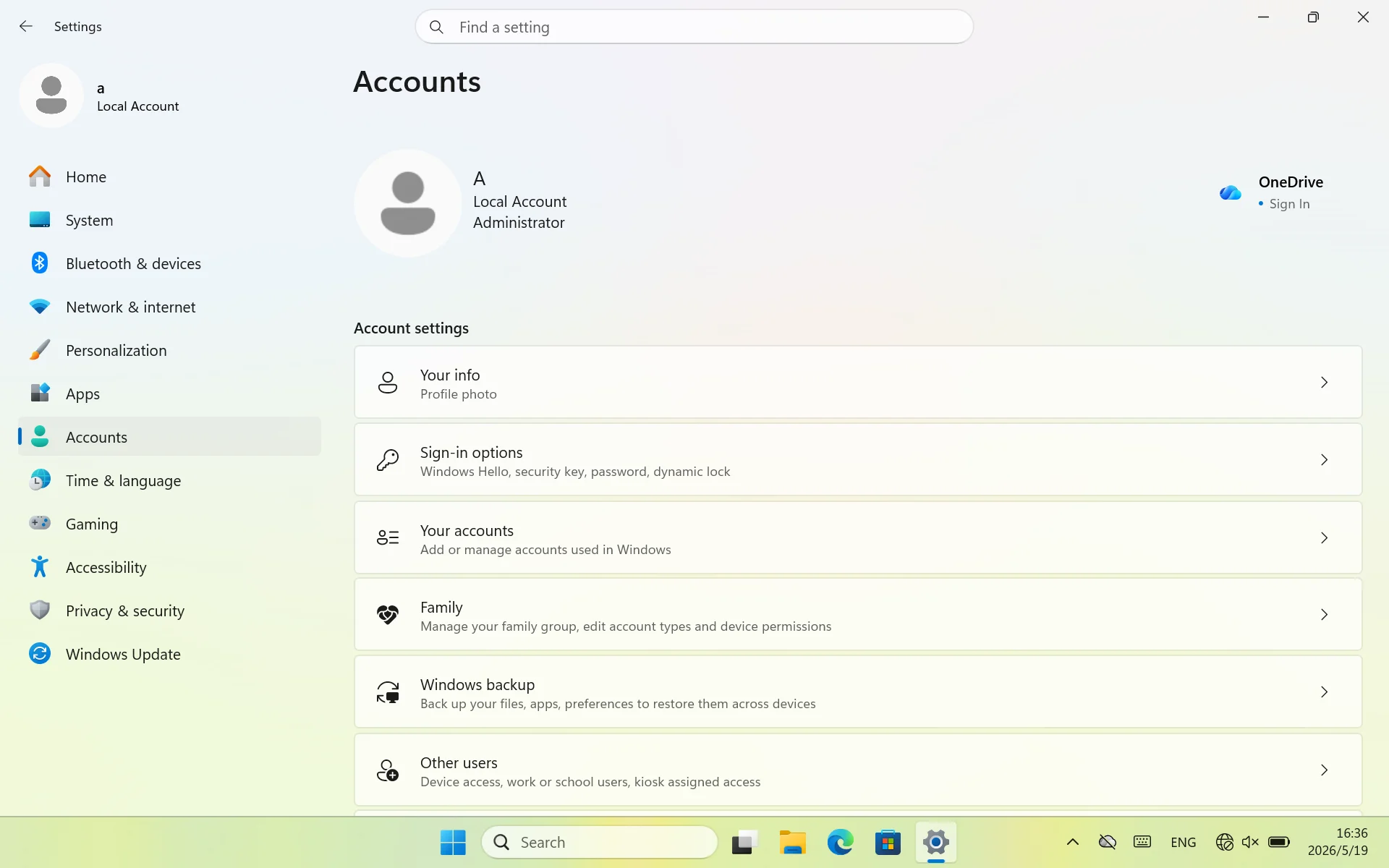
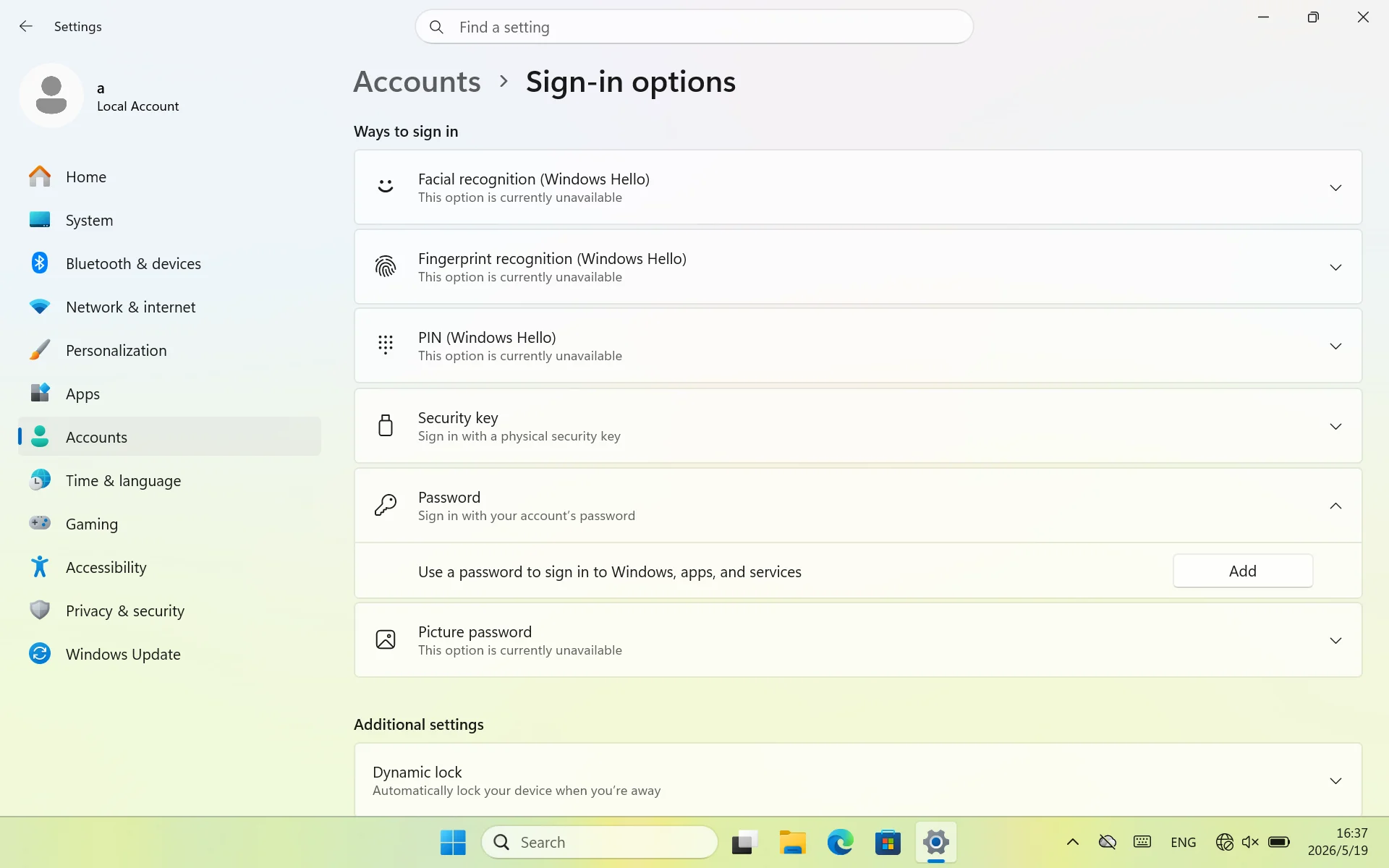
3. If the page prompts that the fingerprint is not available, you need to first set the system login password and PIN code before entering the fingerprint. Click on the password option to add first
4. Enter the login password and password prompt according to the page instructions, and click Next
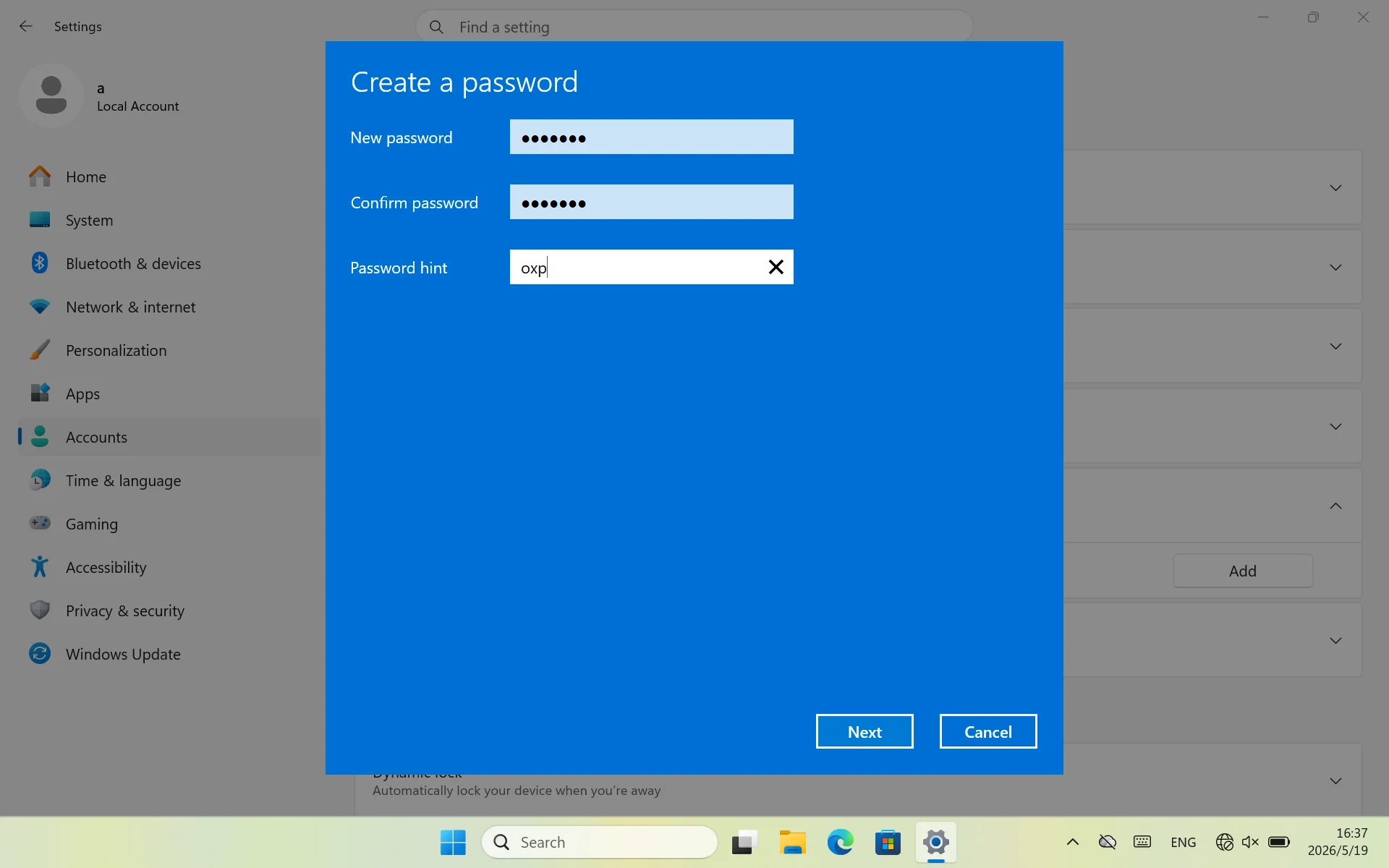
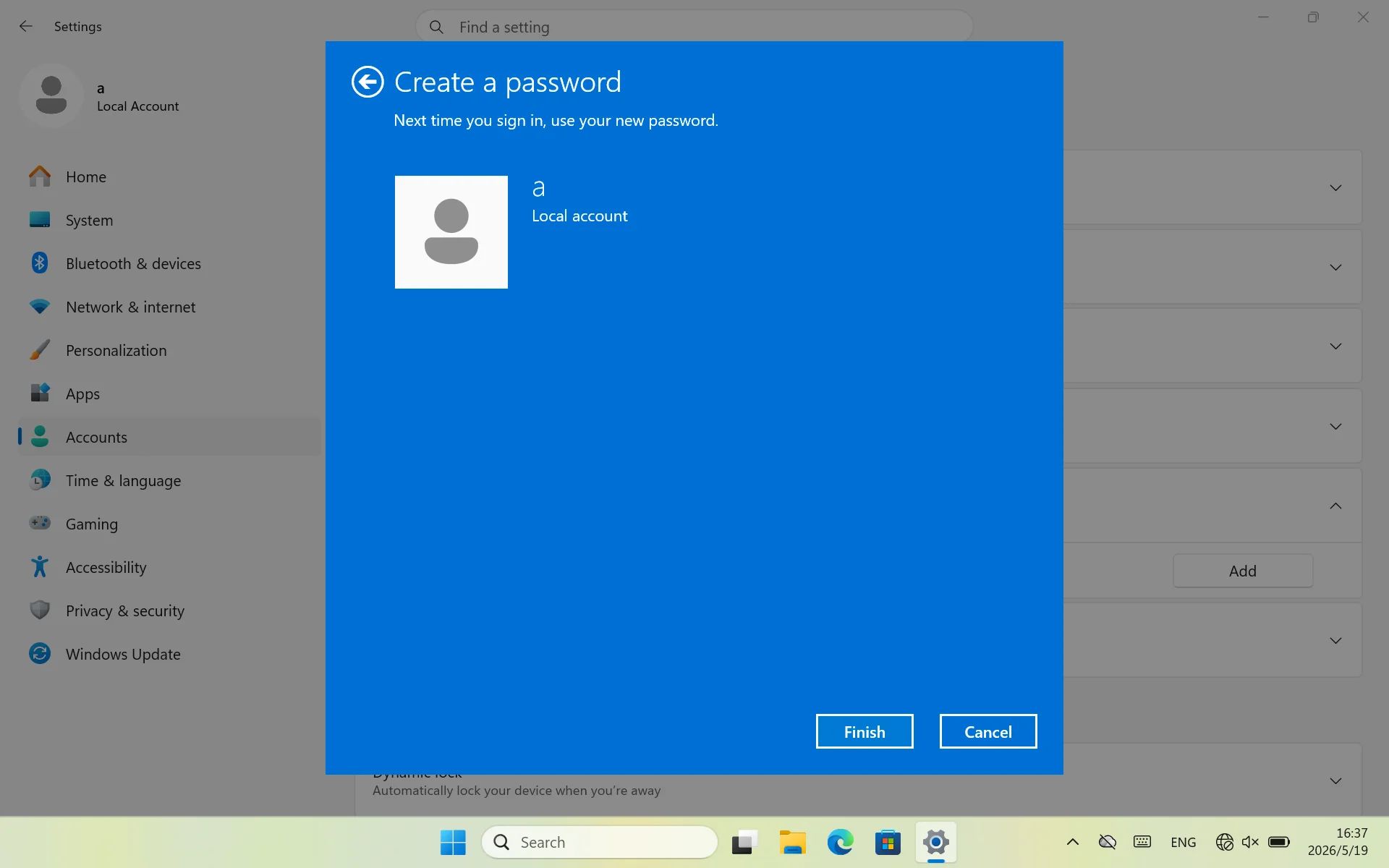
5. After confirming the information, click "Finish" to complete the system password setting
6. Return to the login options list, find fingerprint recognition (Windows Hello) - click on settings
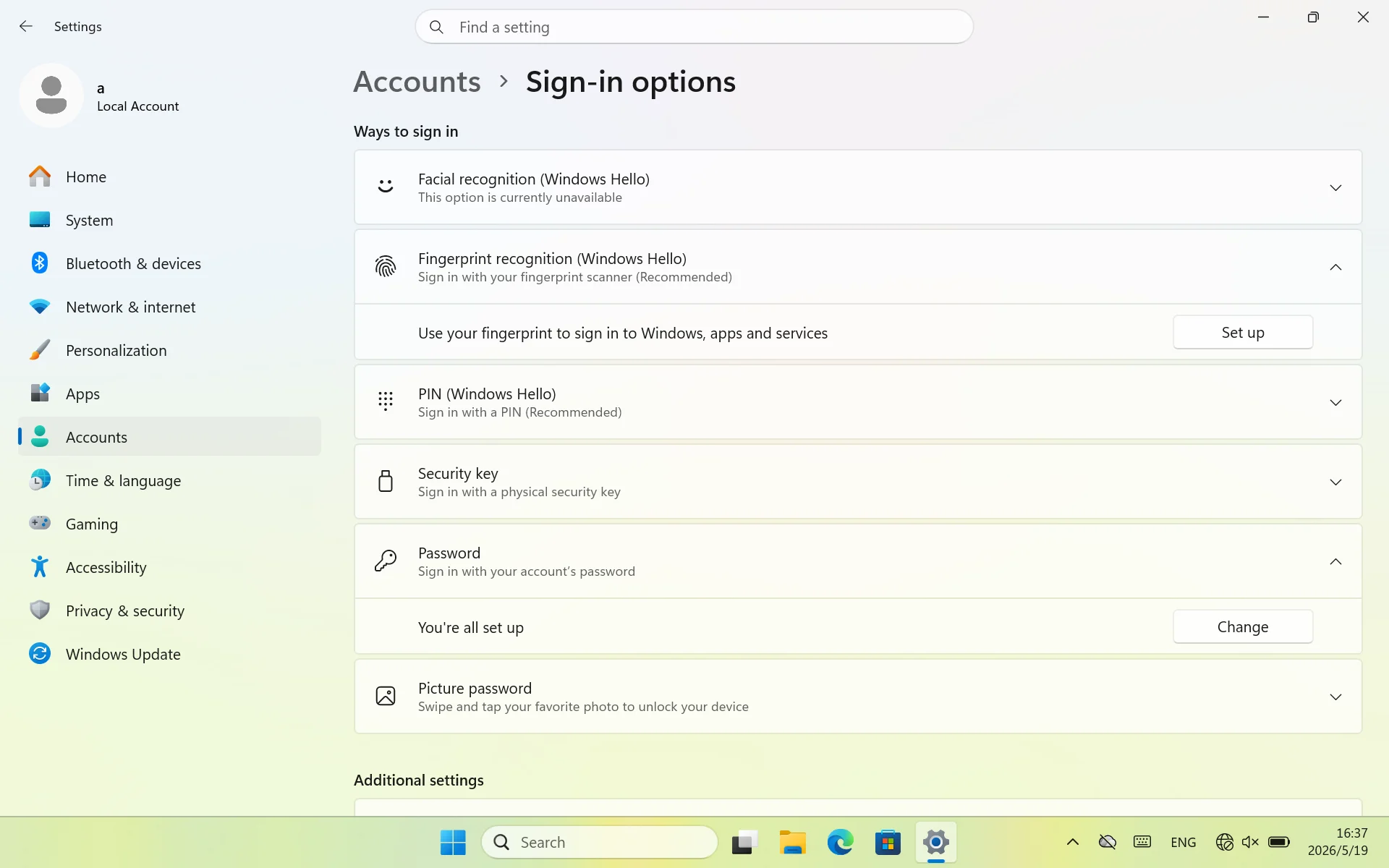
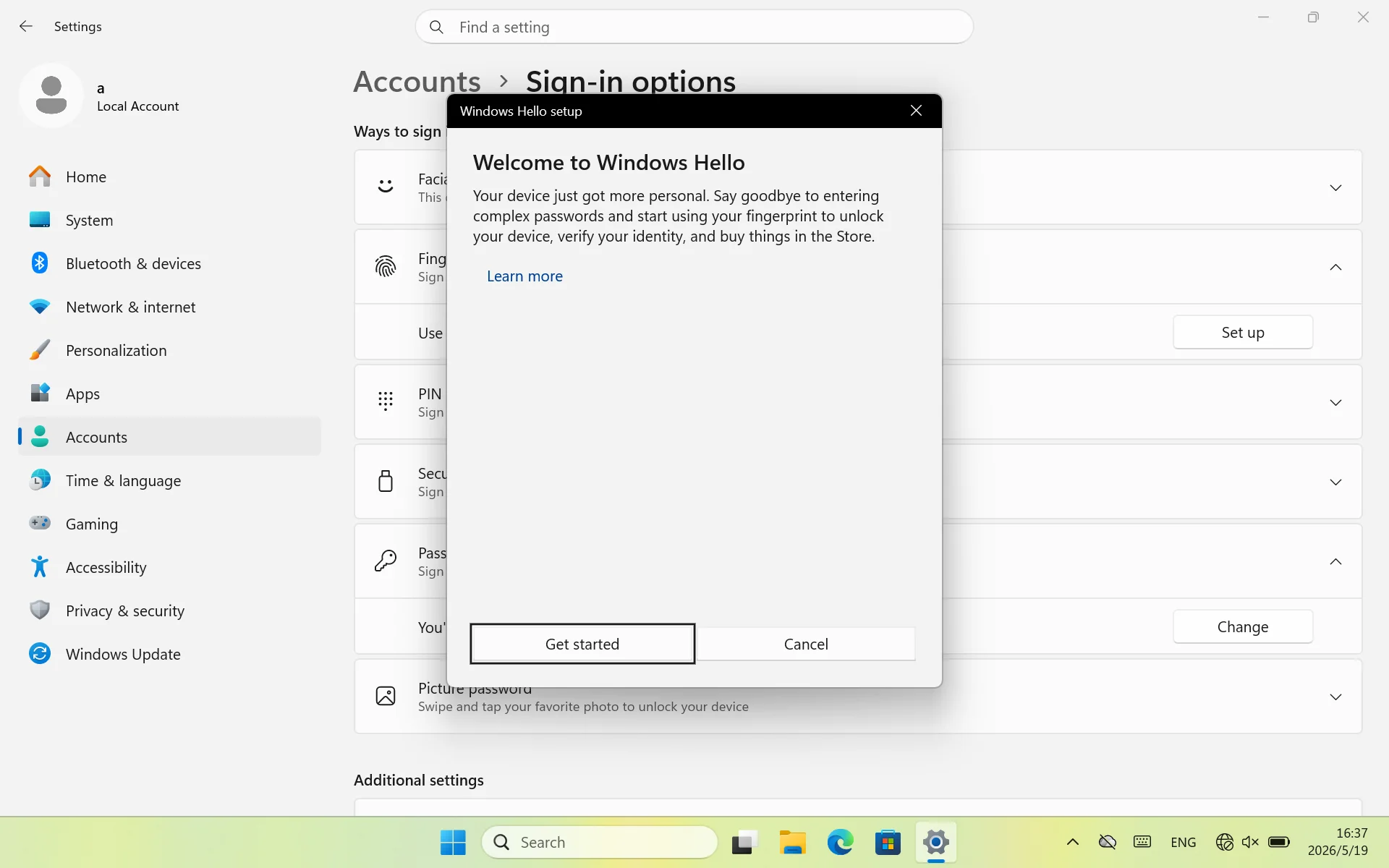
7. At this point, the Windows Hello installation program will pop up. Follow the prompts and click on "Start" in the bottom left corner
8. Start recording fingerprints
Gently place your commonly used fingertips on the top power button sensor, naturally lay it flat, apply even force, and completely cover the surface of the button.
The screen prompts' Raise finger '->Raise finger ->Gently press again, adjust the angle slightly (left/right/upper/lower edge), repeat 5-8 times until it prompts' Fingerprint added'.
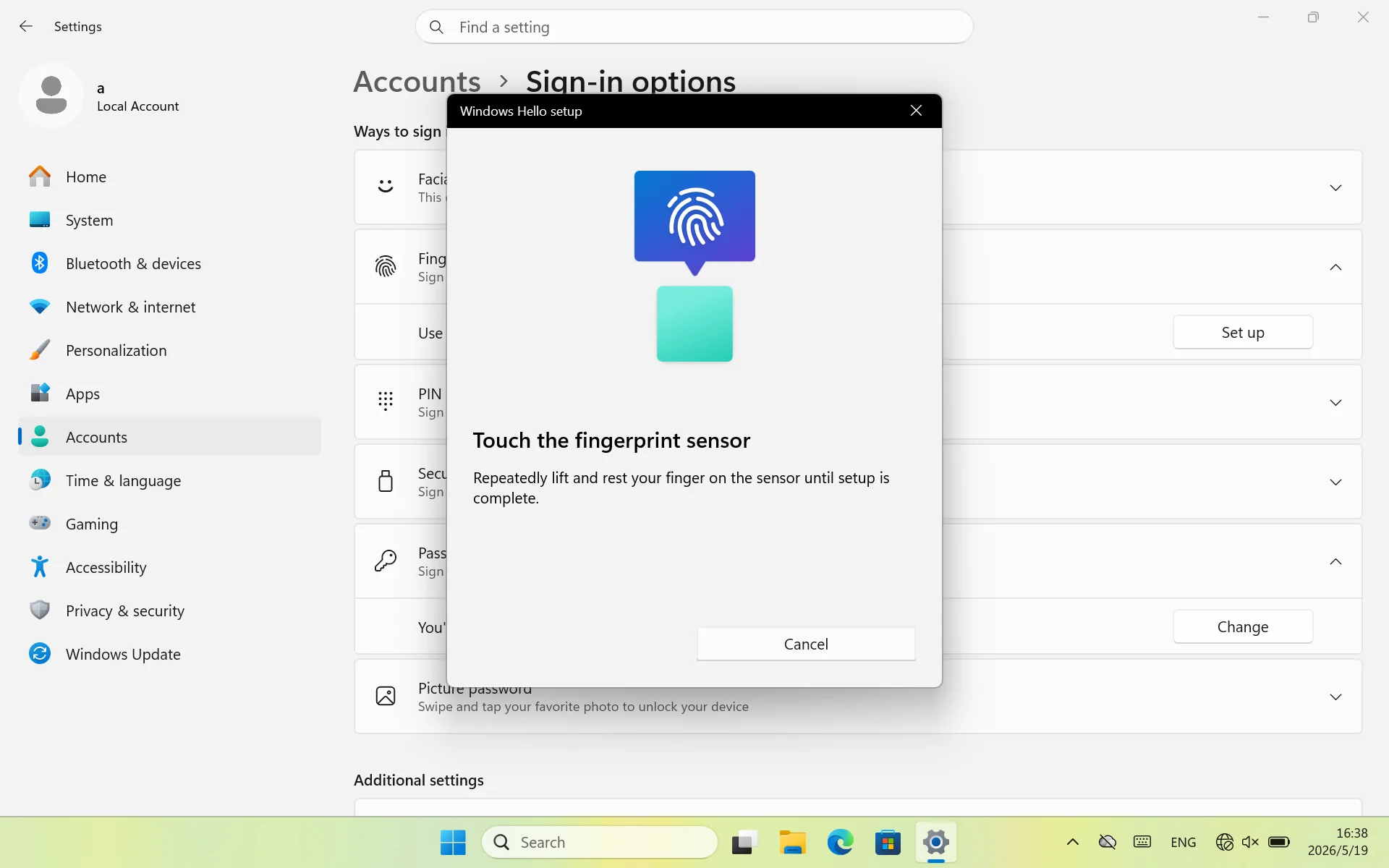
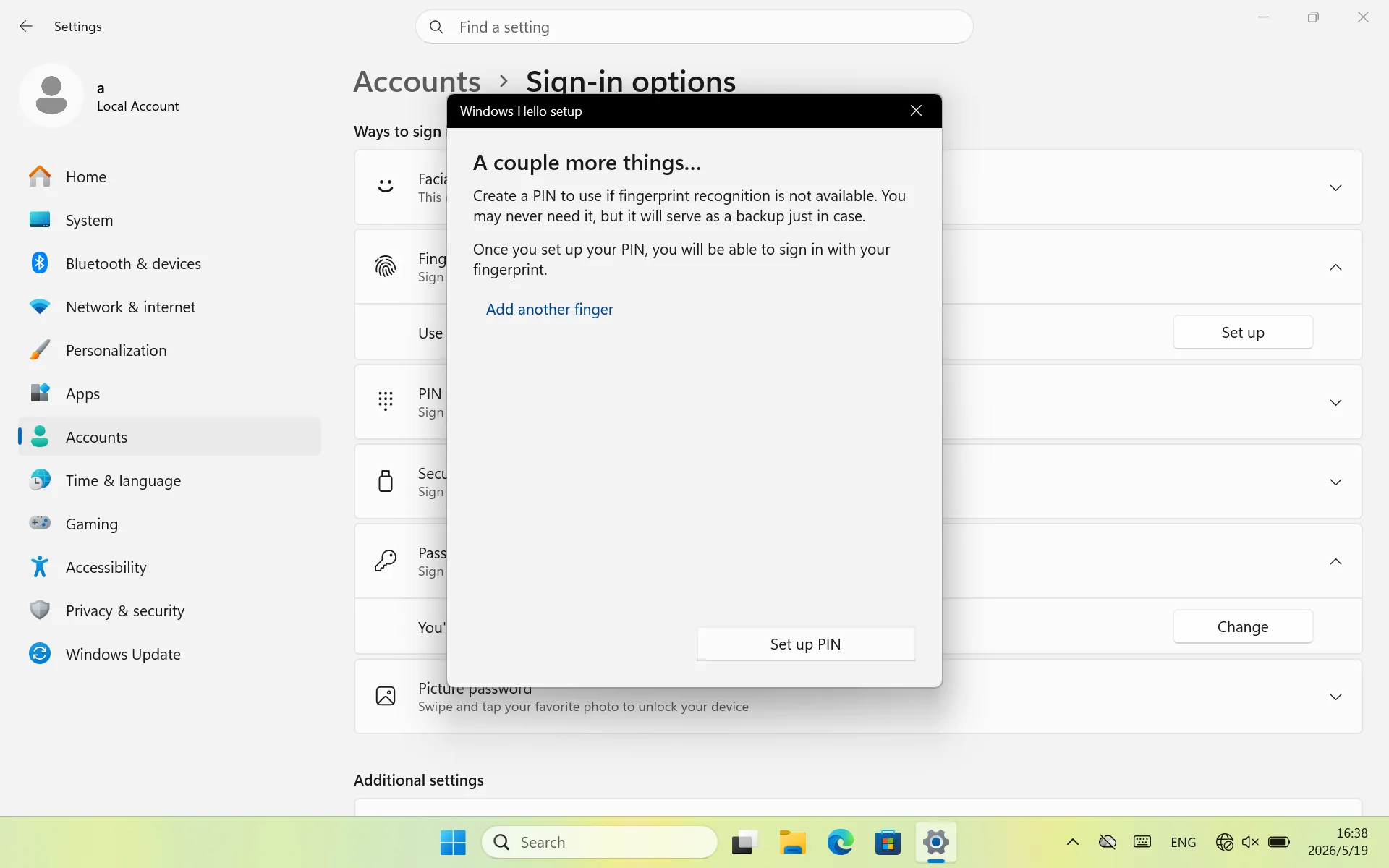
9. After completing the fingerprint input, a "More Matters..." message will pop up. You need to follow the prompts to enter your PIN in order to use the fingerprint function normally. Click "Set PIN"
10. Enter the system login password just set to complete identity verification
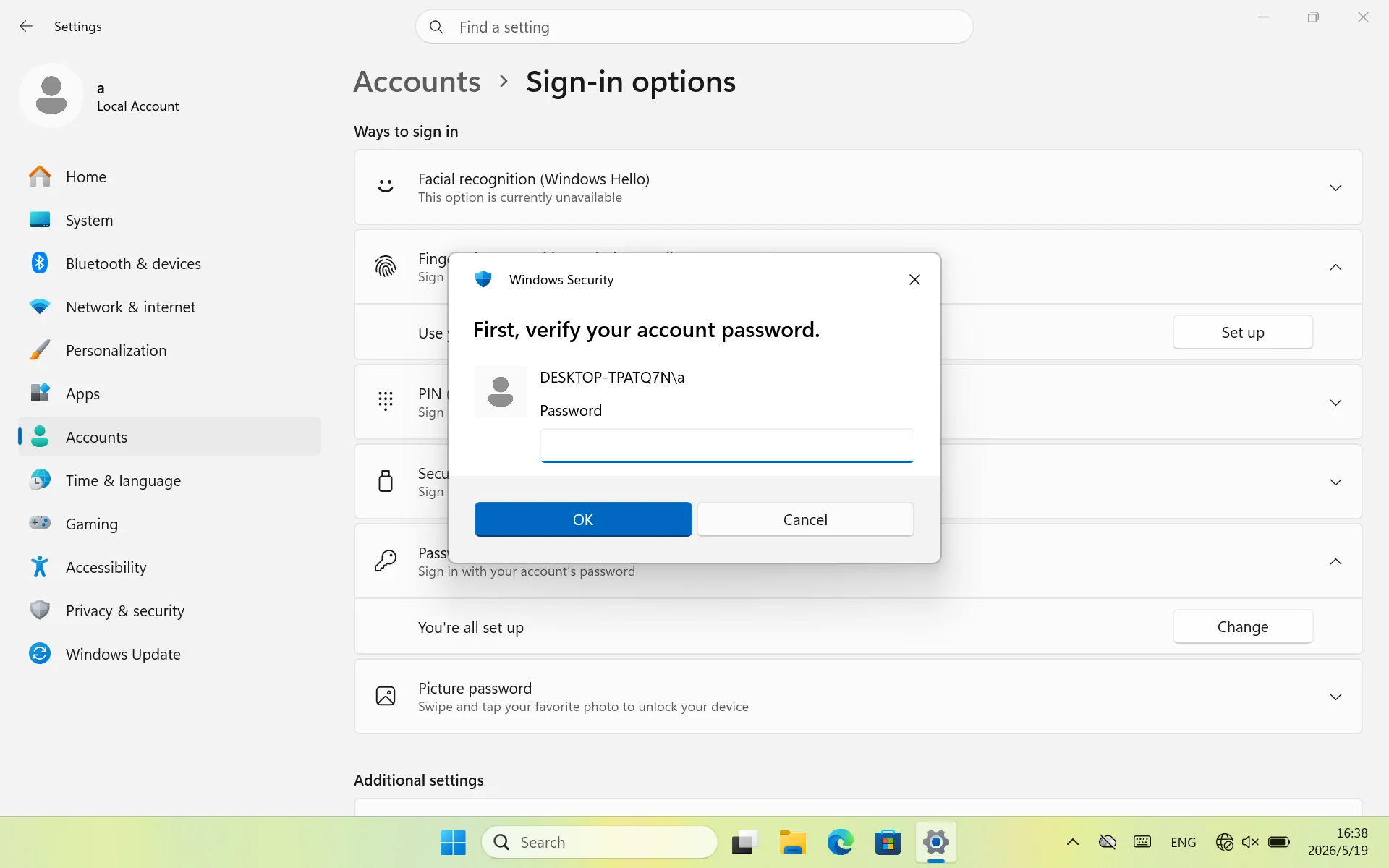
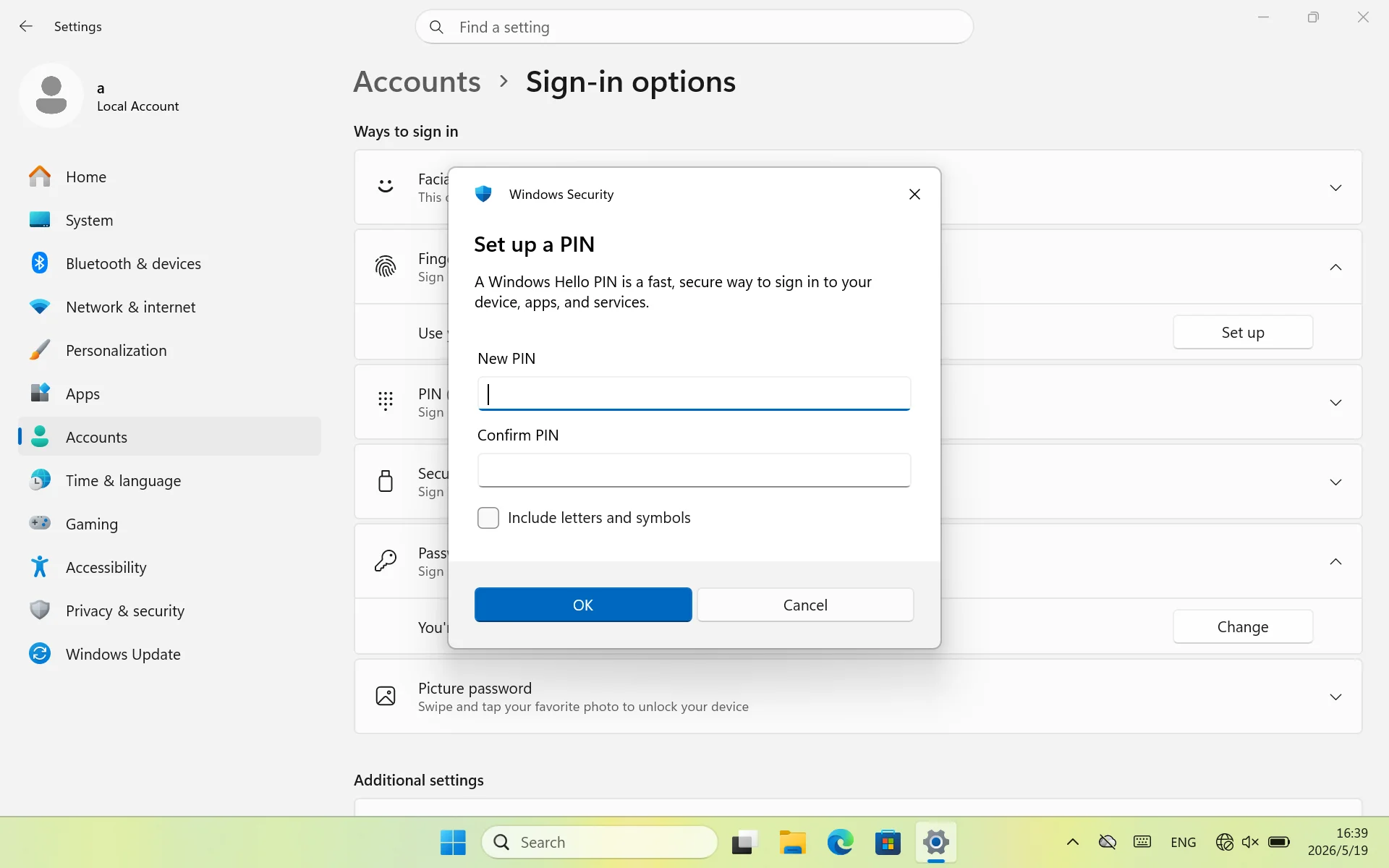
11. Follow the prompts on the page to select "Set Exclusive PIN", and after setting it up, you can use your fingerprint to log in to the system
restore system
Please do not use the built-in restore function in the system settings to avoid system errors
The machine is pre installed with a system restore disk, which can be restored with one click using the [Volume+] button. The specific steps are as follows:
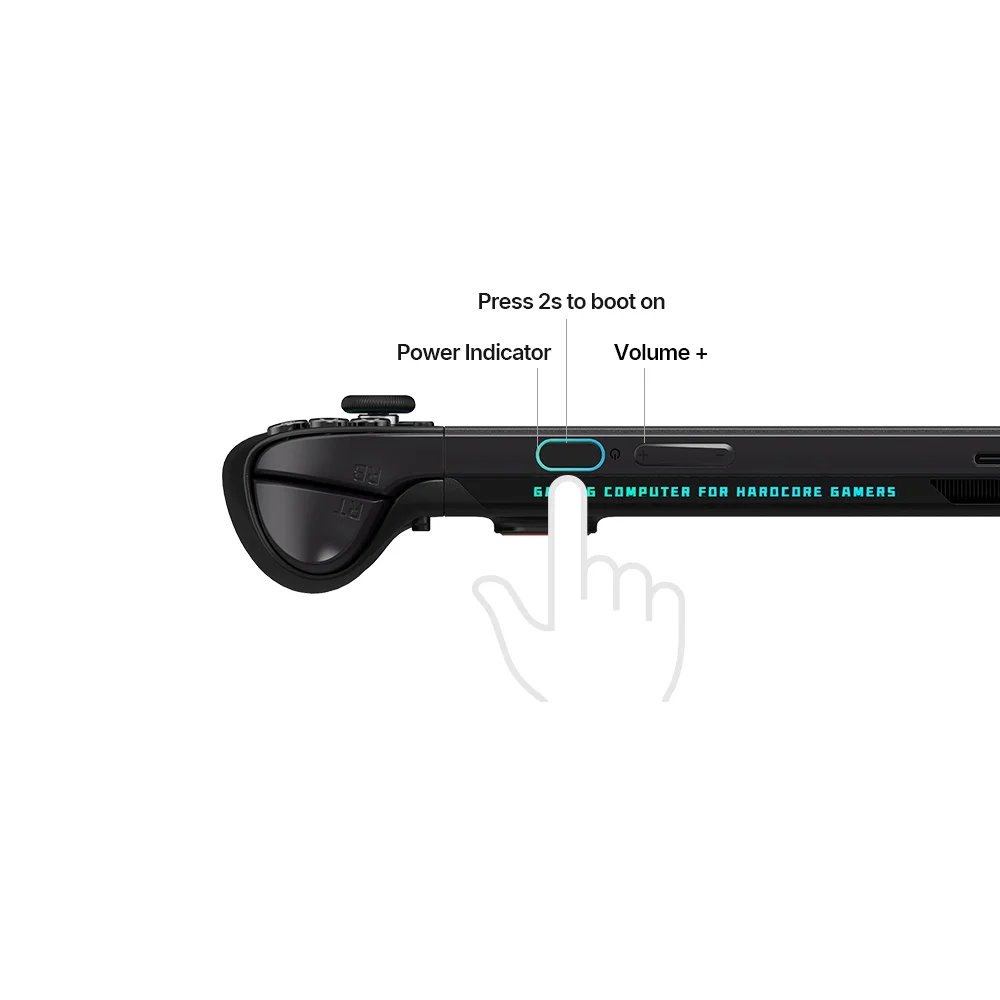
1.[Power button] Press and hold for 2 seconds to turn on the device.
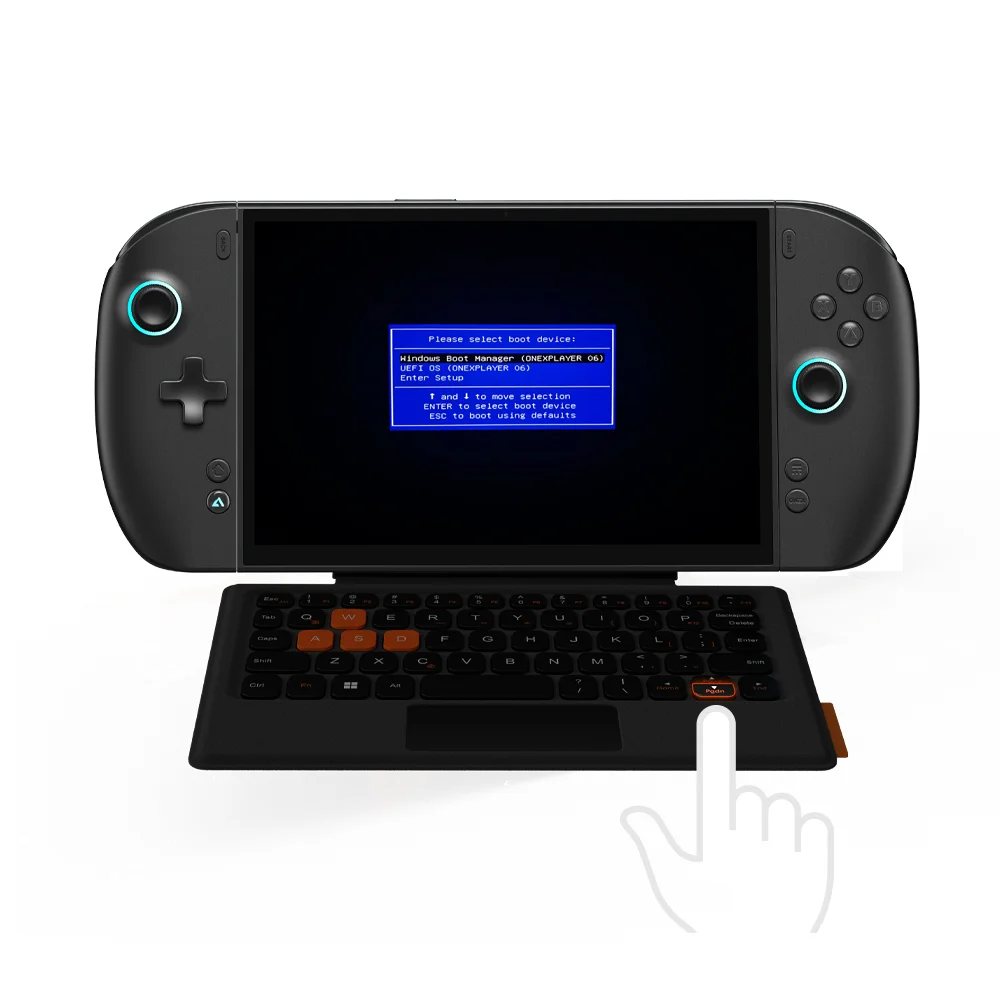
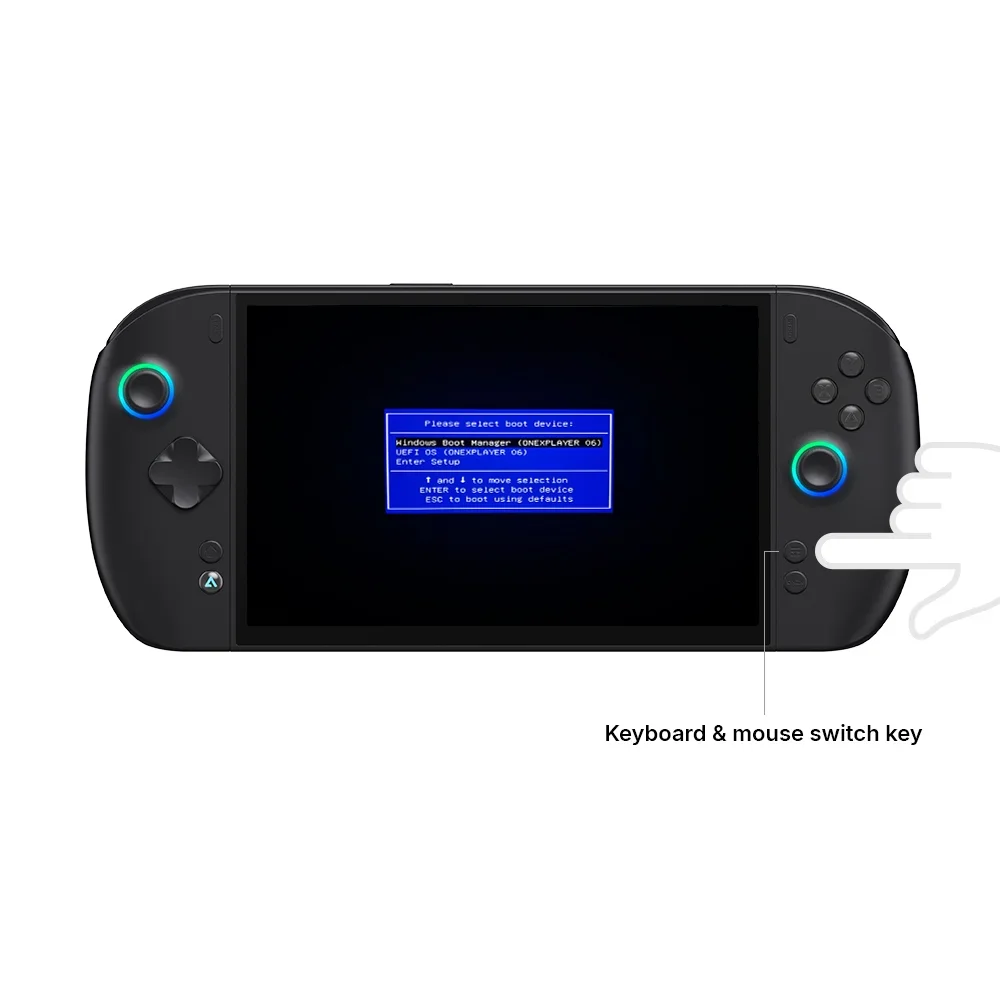
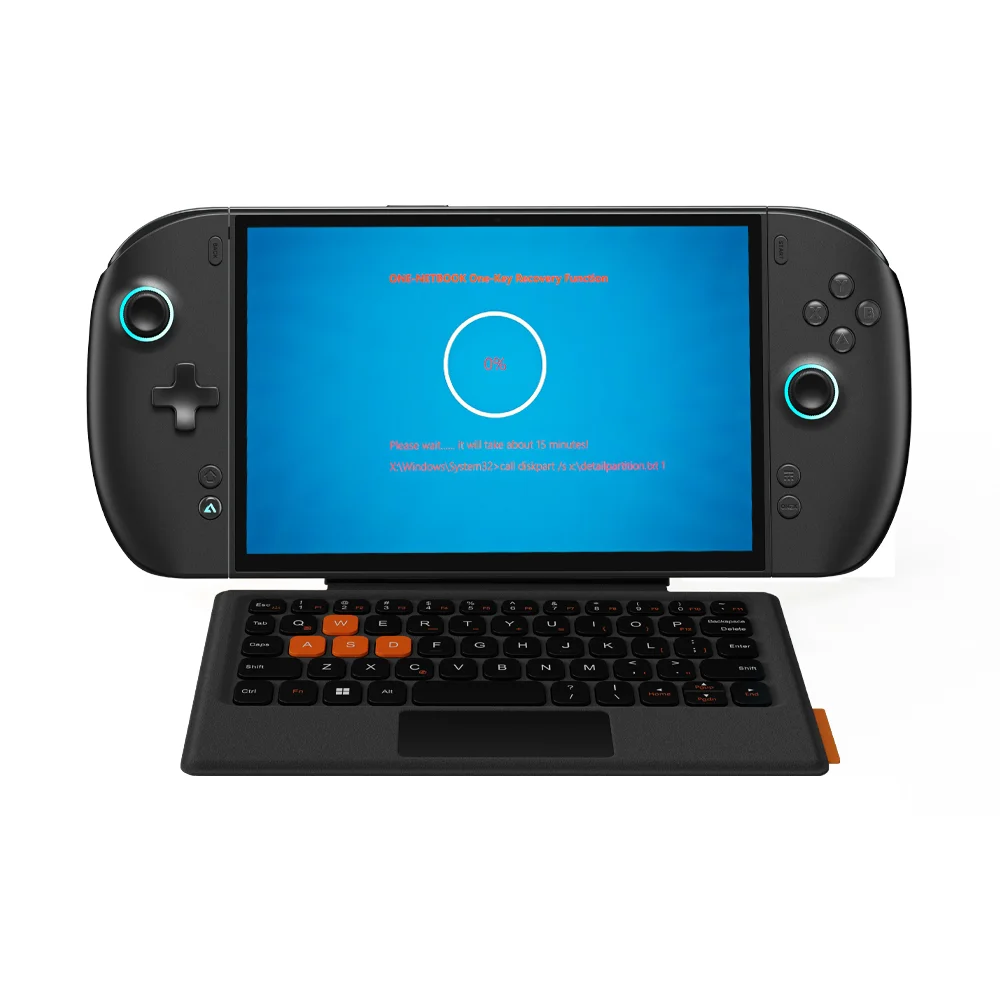
4.Press the enter key on the external keyboard to enter the one key restore interface of the system; If it is in keyboard and mouse mode, press the start button in the upper right corner of the joystick to enter the one click restore interface of the system
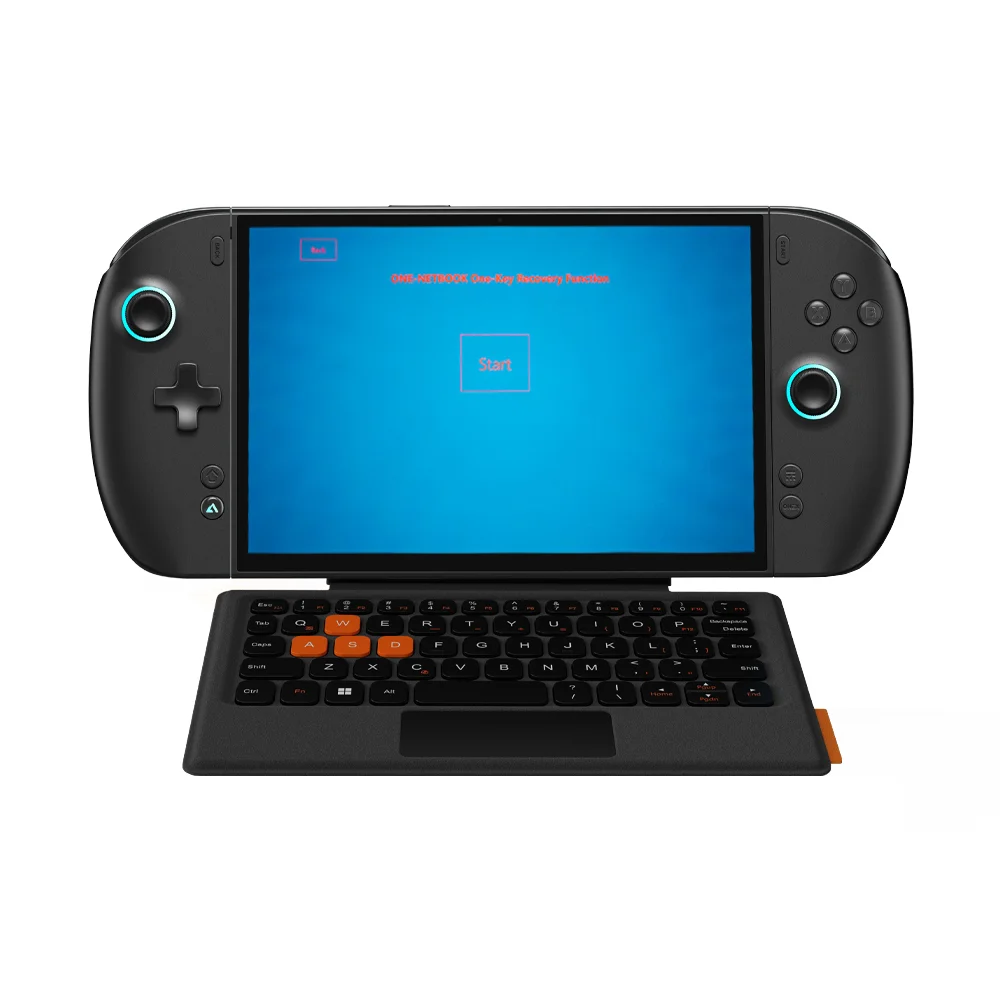
5.Press "start" and patiently wait for the system reset to complete. After the reset is completed, the system will restart. Please do not touch it. (When restoring the system, please connect the power adapter properly to avoid failure caused by automatic shutdown due to low battery)
Introduction to the functions of Onexconsole exclusive control software
One click call to Onexconsole
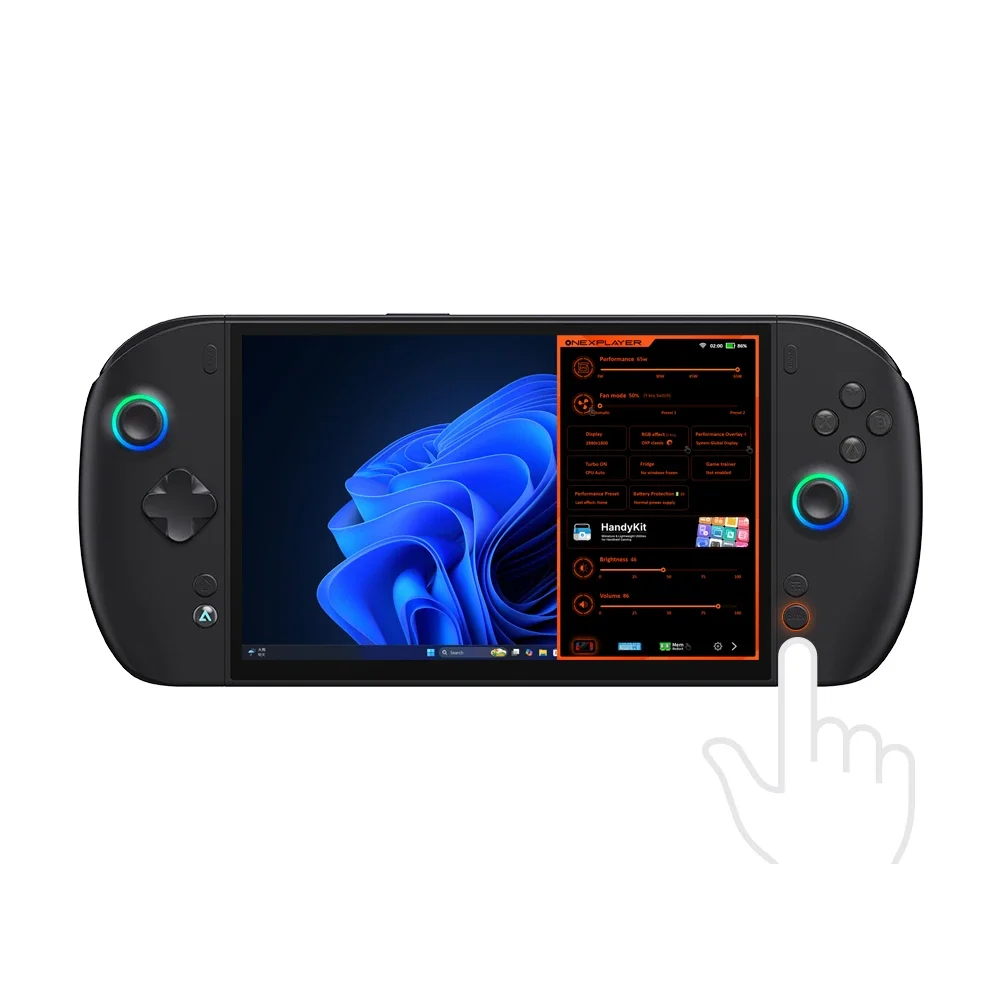
Keep Onexconsole running in the background, simply press the 【 ONEX 】 key to call up the control panel with just one click
CPU power consumption, fan speed, screen resolution, RGB lighting effects, and other functions can be adjusted within the control panel page
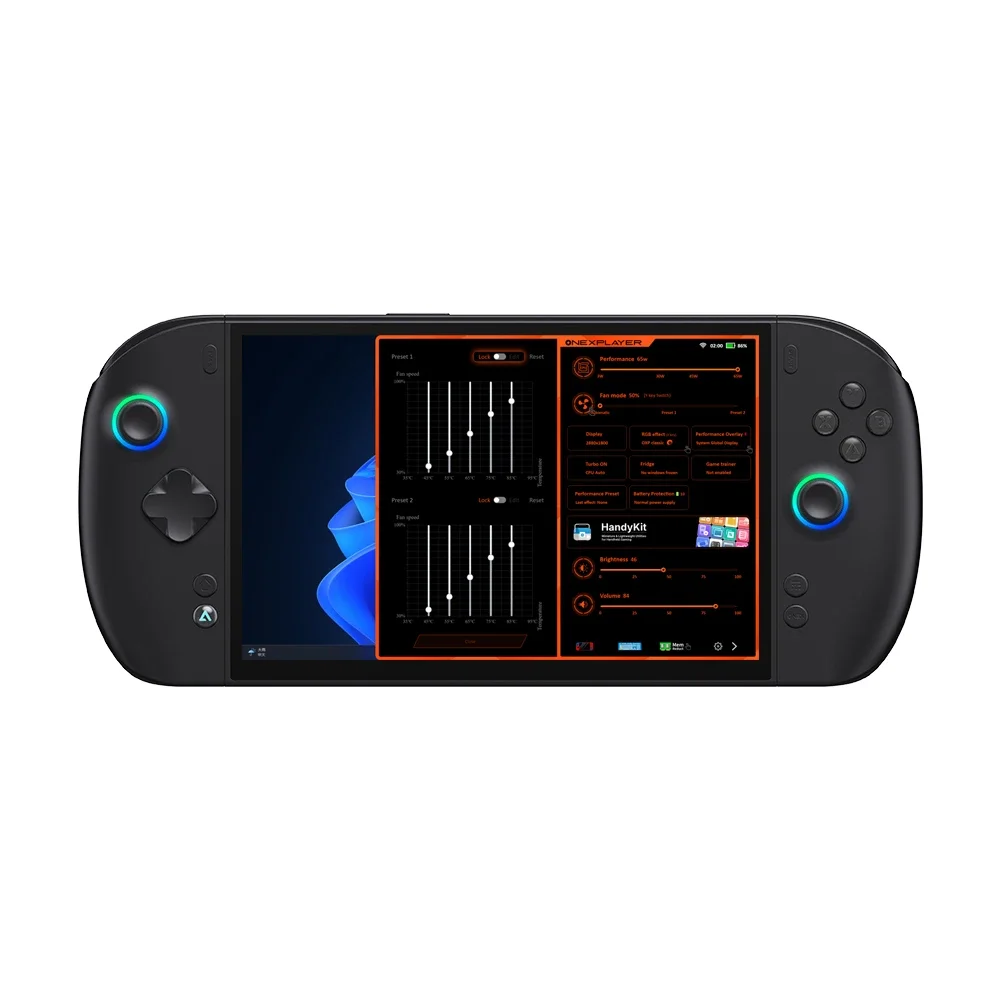
Some function icons come with fingers, indicating the presence of a secondary menu, such as the example of a fan. Long press the fan icon to call up the fan secondary menu
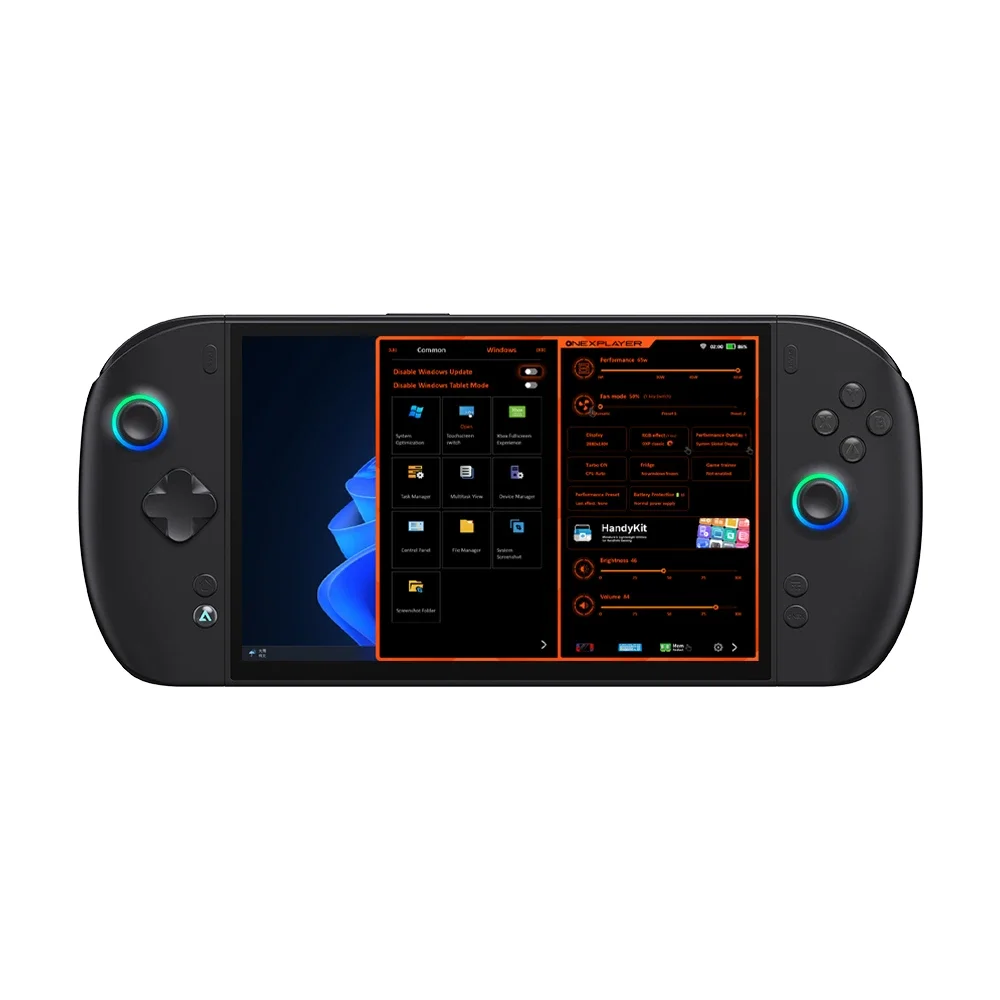
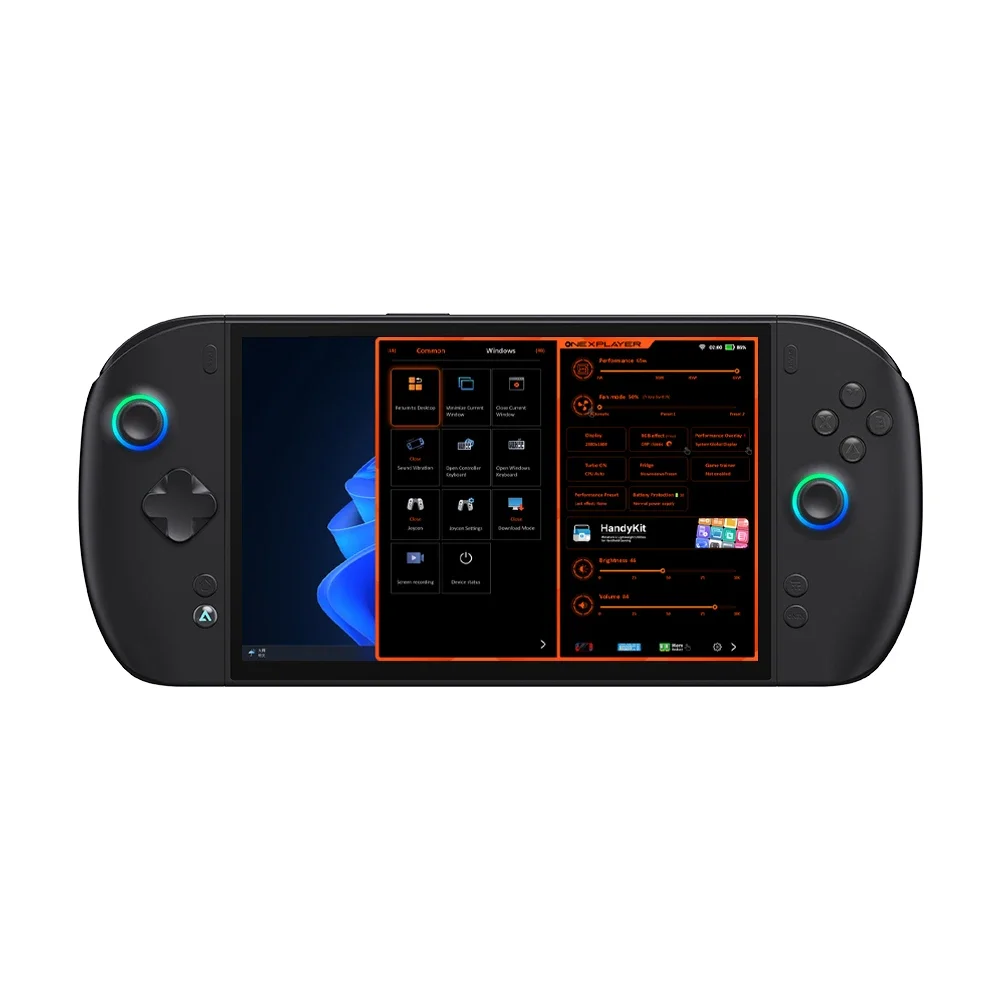
In addition, the onexconsole also comes with a dedicated toolbox, which includes commonly used modules and Windows modules for setting up
Did system updates cause device errors? Why not try the "Disable Windows Updates" feature in the Windows module of the toolbox
OneXConsole Exclusive Game Library
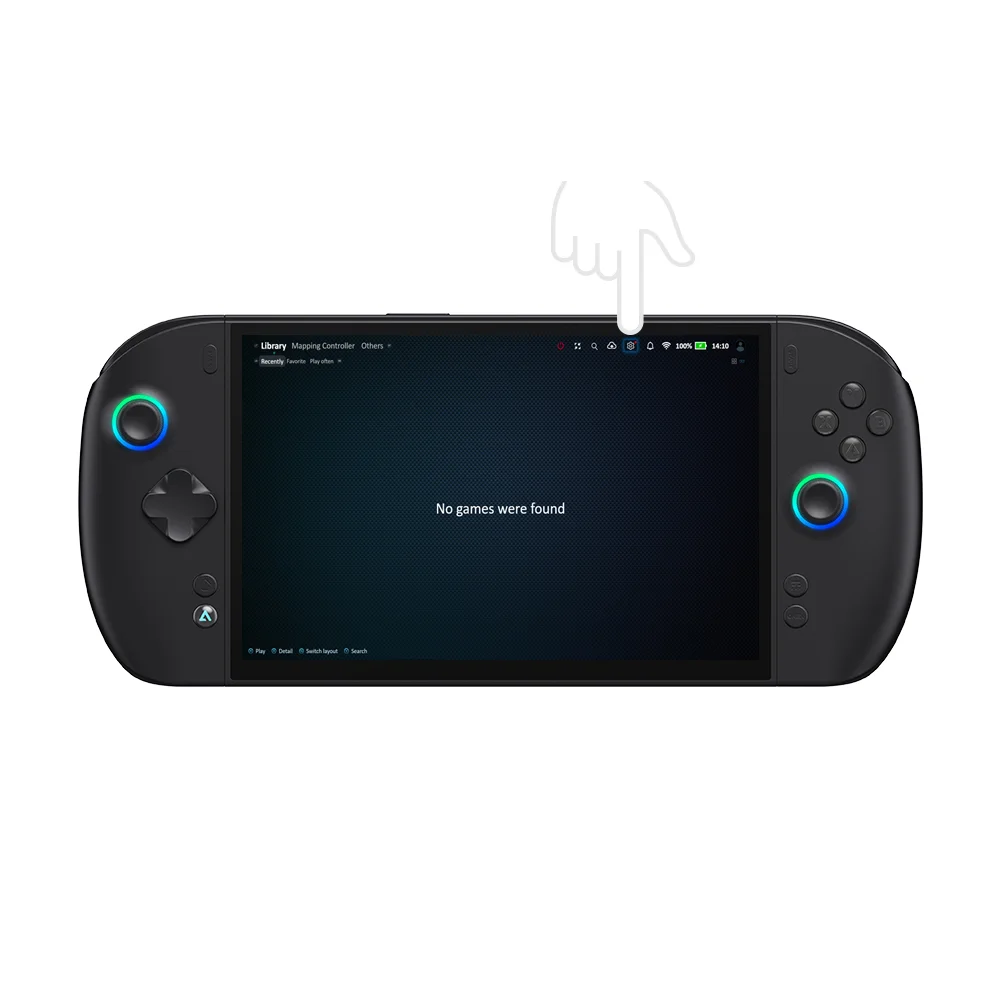
Long press the ONEX key to call up the game library interface with just one click
OneXConsole is equipped with a game library, which allows users to add games from various platforms to the library and launch the platform and games with just one click
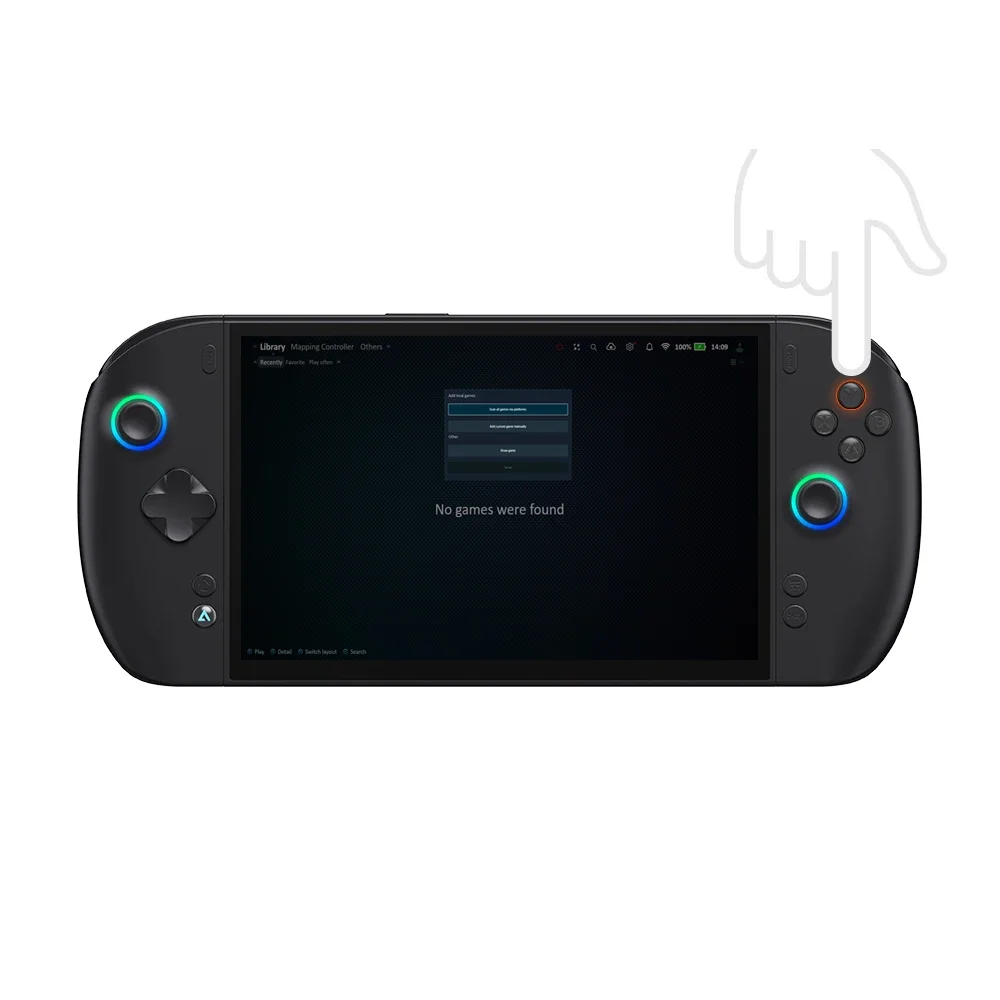
Press Y in the game library to start adding games.
Global Scan: Scan Xbox, Steam, Epic platform games and add them to the game library with just one click.
Manual addition: manually select the game path and add it to the game library
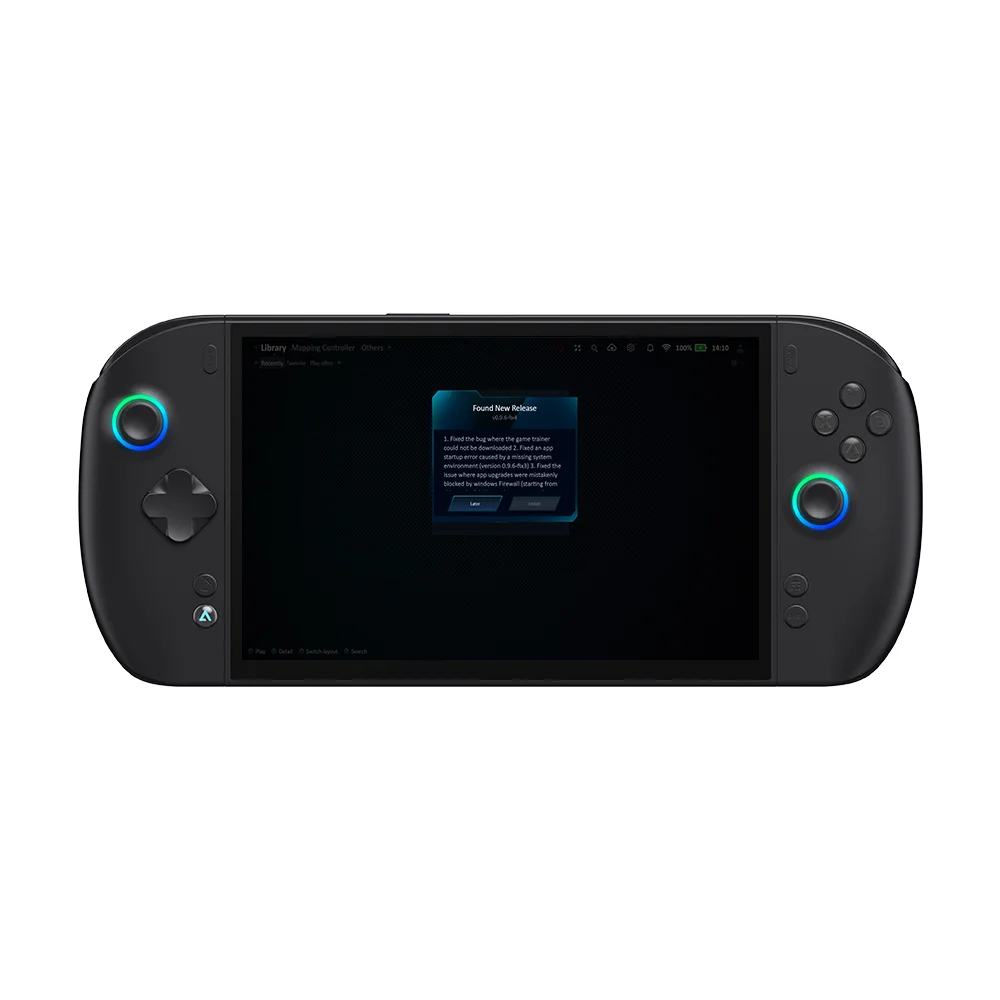
Easily update OneXConsole
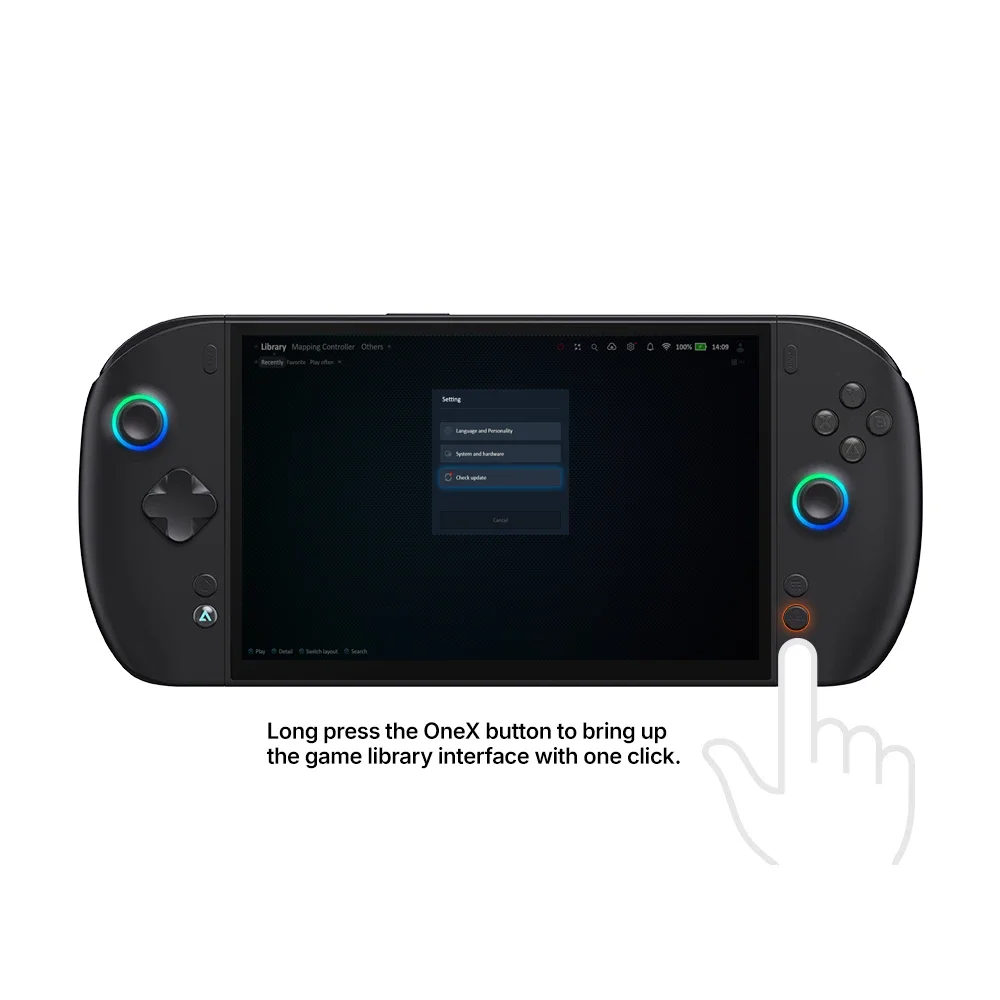
Click on the gear icon in the upper right corner of the game library
Select 'Detect Updates'
Scan and update to the new version of the APP
FAQ
Q: Game library interface, Settings --->Language and Personalization, no skin themes to set?Cloud archive cannot be used?
A: You need to click on your personal avatar to log in first
Q: The two plugins for performance display (RTSS, HW) have been installed, but turning on performance display does not display parameters
A: There is an issue with the installation path of the plugin, it needs to be uninstalled and re downloaded for installation,default installation path
C:\Program Files\HWiNFO64
C:\Program Files (x86)\RivaTuner Statistics Server
Q: I don't want to use the built-in orange virtual keyboard on the onexconsole, but I want to use the virtual keyboard on the Windows system
A: (1) Click on the small gear in the bottom right corner of the console page to pop up the secondary menu. (2) Uncheck the "Enable joystick keyboard" option (and vice versa)
Q: What is the use of performance preset function?
A: Users can save options such as operational performance, fan mode, vibration settings, etc. as a solution. It can be directly activated when needed in the future, without the need for separate modifications, making it convenient to meet the needs of different games.
Q: How to customize the fan speed?
A: By long pressing the fan icon on the touch screen or selecting the fan option using the controller and pressing the Y key, you can enter the preset interface and set the corresponding relationship between temperature and fan speed percentage by yourself.
Q: How to use cloud archiving function on other computers?
A: Install OnexConsole's collaborative end on other computers first. And on the handheld OnexConsole, log in with your phone number and select the game save directory to upload to the cloud save. Click on "Get login code for PC collaboration" in the settings in the upper right corner of the game library, enter and log in on other computer collaboration terminals, and click "Sync Save" to save.
Maintenance Manual
一、Cleaning standards
1. Screen cleaning
Turn off the device and unplug the cable, then gently wipe the fingerprint oil stains with a microfiber cloth/eyeglass cloth
Stubborn stains: Dip a cloth in a small amount of water, wring it out and wipe it off. It is strictly forbidden to spray water directly
Do not spray alcohol, glass water, wet wipes, organic solvents and other liquids, and do not use paper towels for hard wiping
2. Disinfection of the body and handle
Disinfect with 70% medical ethanol, gently wipe with a small amount of cloth, dry thoroughly before turning on the machine
Gap/slide rail: Use a soft bristled brush/blow balloon to remove dust, do not use toothpicks or hard needles
Interface metal contacts: Gently wipe with a dry cloth/cotton swab to keep them dry and free of oxidation
二、Precautions
1. Keep the intake and exhaust ports ventilated at least 10cm without obstruction
2. Do not use the equipment in dusty, damp, dirty, or near magnetic fields to avoid internal circuit failures.
3. Avoid dropping or strongly colliding with the product, and do not subject the LCD screen to violent vibrations, otherwise it may cause damage to the LCD screen or abnormal display.
4. Do not place the device near heat sources or exposed sources of fire, such as electric heaters, microwaves, water heaters, stoves, candles, or other places that may generate high temperatures.
5. To prevent possible hearing damage, do not use high volume for a long time.
三. Battery Safety
Improper replacement or removal of the battery may damage the battery, resulting in overheating or personal injury. The built‑in battery may only be replaced by OneXPlayer or its authorized service providers, and must be recycled or disposed of separately from household waste. Always dispose of the battery in accordance with the user manual and local laws and regulations. Batteries that have been disassembled or modified are not covered under warranty. Charge the device only using the power adapter and charging cable supplied with it. The use of third‑party accessories may degrade device performance and pose potential safety hazards.
The official website of OneXConsole has provided exclusive drivers and a download portal for OneXConsole software. If the device has functional abnormalities, you can first go to the official website to download matching drivers and supporting software for repair and optimization
If the problem cannot be solved by self operation, you can contact the official customer service of No.1 and support remote assistance for troubleshooting and handling.