



Remote Work on ONEXPLAYER 3: Video Calls, Documents, and Multitasking Tested
Remote work rarely fails because a computer cannot open a browser or a document. It fails when the screen, input devices, ports, and battery turn ordinary tasks into repeated setup work. ONEXPLAYER 3 has enough Windows performance for calls, office files, and several active applications, but its success as a remote-work machine depends on using the right physical mode for each task.
The practical verdict is clear: it works well for short to medium work blocks, travel days, and a compact hotel-desk setup. It is less comfortable for all-day typing or dense desktop layouts unless an external monitor and full-size keyboard are available.
The Test Is About Workflow Friction
The ONEXPLAYER 3 product design combines detachable controllers, a magnetic keyboard, a kickstand, and Windows 11 in one 8.8-inch system. That hardware can move between handheld, tablet, and keyboard modes without changing files, applications, or accounts.
That continuity is the real remote-work advantage. A user can review messages in tablet mode, attach the keyboard for document edits, and connect a monitor for a longer session. The same Windows installation keeps browser profiles, Office files, VPN software, and communication tools available throughout the day.
The limitation is equally practical. An 8.8-inch screen and compact keyboard create a smaller workspace than a conventional laptop. ONEXPLAYER 3 should therefore be judged as a flexible remote-work computer, not as a claim that every desk setup can disappear.
| Remote-work task | Best ONEXPLAYER 3 setup | What works well | Main constraint |
|---|---|---|---|
| Video calls | Kickstand, headset, external USB camera if needed | Stable Windows conferencing apps and compact desk footprint | Camera and audio accessories add setup |
| Documents and email | Magnetic keyboard, 60Hz display profile | Quick edits, browser work, notes, and short writing blocks | Compact keys and limited screen area |
| Multitasking | External display through USB4 or USB-C | Multiple apps, full desktop layout, normal peripherals | Hub and monitor reduce the one-device simplicity |
| Review and reading | Tablet mode with controllers detached | Touch navigation, PDFs, dashboards, and media | Windows touch targets vary by application |
Video Calls Need a Deliberate Desk Mode
A reliable call setup starts with the kickstand. The screen must remain stable while the user types, shares a screen, or checks notes. Removing the controllers also reduces the width of the device and leaves more room for a headset receiver, compact hub, or external camera cable.
Windows compatibility is the easy part. Major browser-based and desktop conferencing tools run in the same environment as the user's documents. The physical setup requires more thought because a gaming handheld is not shaped like a conventional notebook lid. A USB camera, headset, or external display can turn ONEXPLAYER 3 into a capable call station, but those accessories should be tested before an important meeting.
Screen sharing also changes the workload. The Intel Arc G3 Extreme platform and 24GB or 32GB of LPDDR5X memory provide ample headroom for a call, browser tabs, a presentation, and background chat at the same time. The more important limit is what fits clearly on the 8.8-inch panel while the call controls remain visible.
Documents Reward Short, Focused Sessions
The 8.8-inch 1920 × 1200 AMOLED display uses a 16:10 layout, which gives documents and web pages more vertical room than a 16:9 panel of the same width. Text appears sharp, and the native landscape orientation suits browser tabs, email, and two-pane document views better than a portrait-first tablet interface.
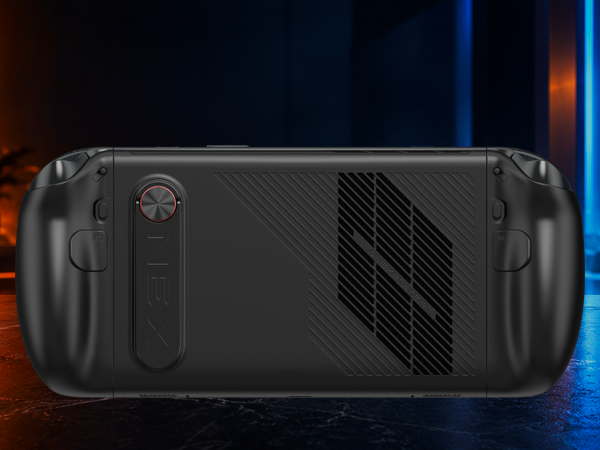
ONEXPLAYER 3 is most convincing when the work has a clear finish line: approve a proposal, update a spreadsheet, answer email, or revise several pages. The magnetic keyboard keeps the kit compact and also protects the screen in transit. For thousands of words or a spreadsheet with many columns, a full-size keyboard and larger display remain the more comfortable choice.
The earlier ONEXPLAYER 3 travel-laptop test reaches the same boundary from a broader angle: the device can replace a laptop when work happens in focused blocks, while long production sessions benefit from desktop peripherals.
Multitasking Works With a Disciplined Layout
Memory capacity is not the first multitasking bottleneck here. Even the 24GB configuration has room for a call, browser, document editor, messaging client, and cloud sync. The bottleneck is visual organization on an 8.8-inch canvas.
A productive layout keeps one main application visible and uses task switching for the rest. Snap layouts can help with two applications, but four small windows create more navigation cost than useful information. For research, place the browser beside a note or document. For a meeting, keep the call visible and move notes to a second display or a phone.
An external monitor changes the equation. USB4 supports compatible displays, hubs, and eGPU docks, while USB Type-A and a second USB-C connection leave options for conventional peripherals. At that point, ONEXPLAYER 3 behaves more like a compact Windows desktop whose handheld controls can be reattached after work.
Battery and Ports Define the Workday
The built-in 85Wh battery is large for a handheld, but remote-work runtime still depends on brightness, refresh rate, wireless activity, conferencing, and background applications. A light document session does not draw power like an AAA game, yet video calls can keep the display, wireless connection, microphone, and processor active at once.
For work away from an outlet, use 60Hz instead of 144Hz, lower brightness to the room, close game launchers, and select a conservative power profile in OneXConsole. Keep the higher 144Hz setting for gaming or fast visual work where it materially improves the experience. A compact USB-C charger can cover the device and other travel electronics if its output is appropriate.
The port plan should match the day. A call with a headset may need no hub. A presentation may require HDMI or wired networking. A hotel workstation may add a monitor, mouse, and full-size keyboard. Packing one small hub for known requirements is more useful than carrying adapters for every possible situation.
Who Should Use It for Remote Work?
ONEXPLAYER 3 is a strong remote-work fit for travelers, field staff, consultants, and hybrid workers whose day mixes reading, communication, documents, and short bursts of focused editing. It is especially useful when the same device will also handle gaming after work.
It is a weaker replacement for a traditional laptop when the job involves all-day typing, detailed spreadsheet analysis, color-critical creative work, or several persistent windows. Those users can still benefit from the device, but they should treat an external display and keyboard as part of the workstation rather than optional extras.
Conclusion
ONEXPLAYER 3 passes the remote-work test when flexibility matters more than a large built-in workspace. Video calls are practical with a stable stand and the right camera or audio accessories. Documents and email work well in focused sessions. Multitasking is comfortable when the layout stays simple or an external monitor is available.
The best use case is a mobile Windows computer that changes roles during the day. It can be a tablet between meetings, a compact document machine at a cafe, a docked workstation in a hotel, and a handheld after hours. Review current configurations on the official ONEXPLAYER 3 product page.
FAQ
How long can ONEXPLAYER 3 run on a full charge during remote work?
Runtime varies with brightness, refresh rate, wireless activity, video calls, and the selected power profile. Its 85Wh battery supports lighter work more efficiently than high-TDP gaming, so 60Hz, moderate brightness, and a conservative OneXConsole profile are the sensible settings for a workday.
Does ONEXPLAYER 3 support external monitors or eGPU docks?
Yes. Its USB4 connection supports compatible monitors, hubs, and external graphics docks such as ONEXGPU. It does not have a native OCuLink port, so external graphics should be planned around USB4.
Can ONEXPLAYER 3 play large AAA games after work?
Yes. Intel Arc B390 graphics, an adjustable 8W to 35W product range, and supported XeSS features give it the resources for demanding Windows games. Resolution, settings, TDP, and game support determine the final result.
Is ONEXPLAYER hardware reliable for travel and remote work?
ONEXPLAYER uses a managed production and quality-control process. A protective case, suitable charger, and a tested cable and hub kit are still important when the device is carried between work locations.


